Hello, my lovely audience! I’m Nisha, and I’ve been using Pictory AI for the past six months — testing it, publishing with it, and sharing everything I learn right here on this blog.
If you’ve ever wanted to start a YouTube channel but dread showing your face on camera, you’re not alone. Thousands of creators feel the exact same frustration — great ideas, no confidence on screen. That’s where faceless YouTube videos come in. And Pictory AI makes this surprisingly simple, even if you’ve never edited a video before.
Today, I also have an exclusive discount code just for my daily readers — because you deserve the best tools and the best deals. Let’s get into exactly how to make faceless YouTube videos with Pictory AI, step by step, no fluff.
What Is a Faceless YouTube Channel?
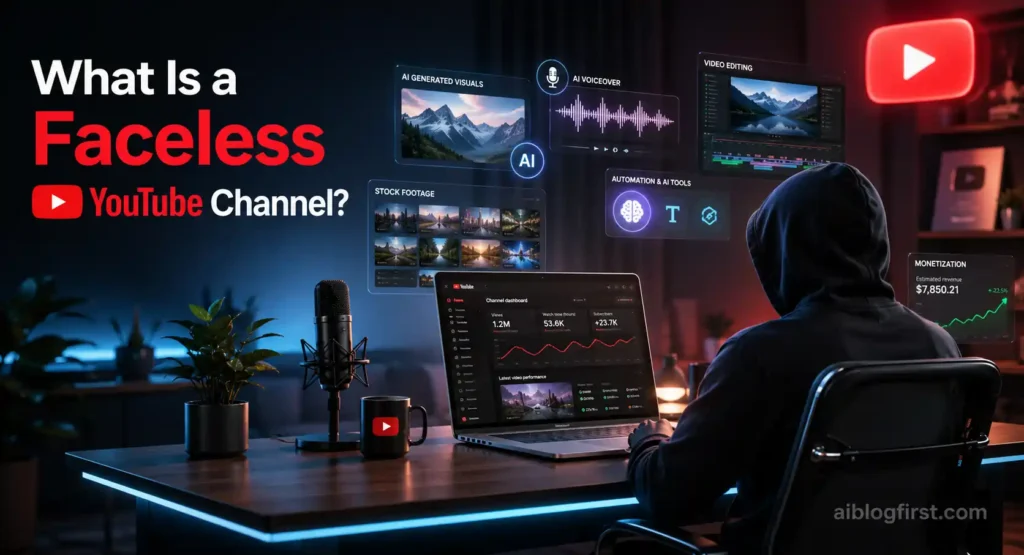
A faceless YouTube channel is exactly what it sounds like — a channel where you never appear on camera. Instead, you use voiceovers, stock footage, text animations, and AI-generated visuals to deliver your message.
This style has exploded in popularity because it removes the biggest barrier most new creators face: being on camera. Channels in niches like finance, motivation, tech news, and even cooking tutorials run completely faceless — and many earn thousands of dollars monthly through YouTube’s Partner Program and affiliate marketing.
The key is that faceless doesn’t mean low quality. Done right, these videos look polished, professional, and highly watchable.
Exclusive Pictory AI Discount — Only for My Readers!
Get 20% off your Pictory AI plan and start creating professional faceless YouTube videos today.
👉 Use Code at Checkout: CABF20
Why Use Pictory AI for Faceless YouTube Videos?
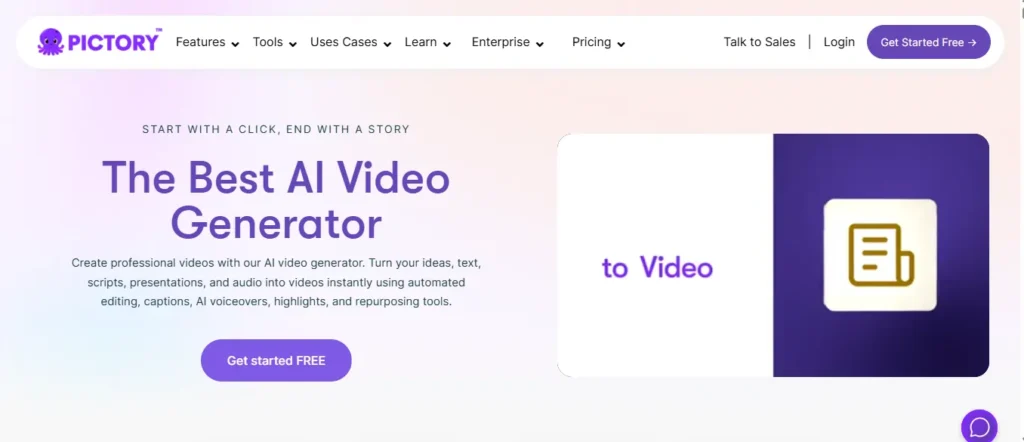
There are dozens of AI video tools available today, but Pictory AI has a specific edge for faceless content creators.
The Best AI Video Generator for Beginners
Pictory was built with non-editors in mind. You don’t need to understand timelines, keyframes, or rendering settings. If you can type, you can create a video. The interface is clean, the workflow is logical, and the learning curve is genuinely low — even users with zero video experience consistently report results within their first session.
Script to Video and Blog to Video Features
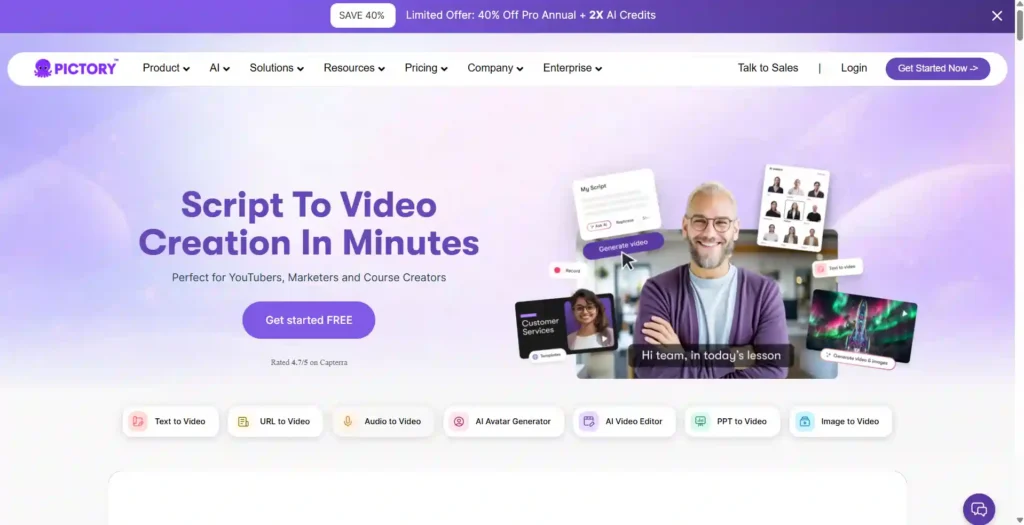
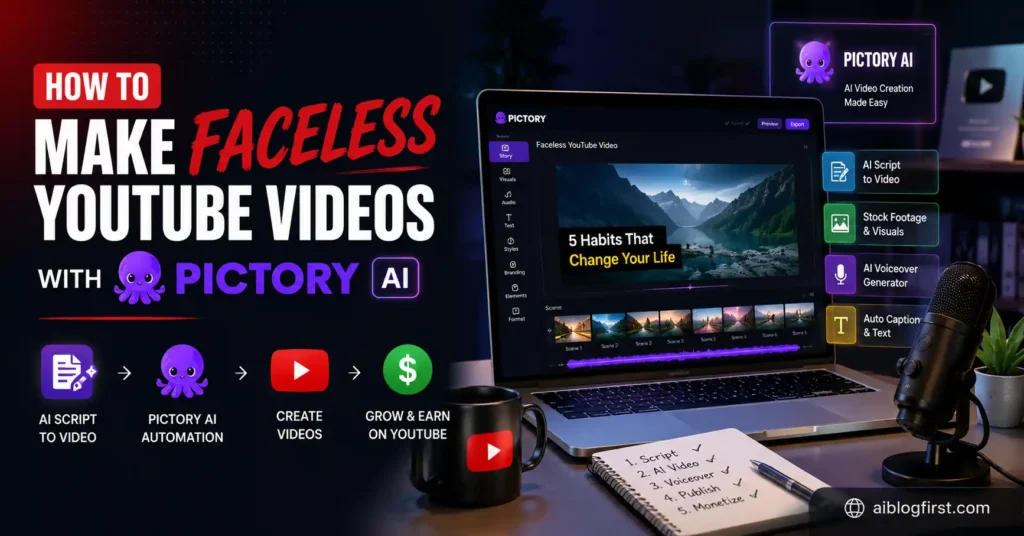
This is where Pictory really separates itself. You can paste a written script directly into the tool and it will automatically break it into scenes, match relevant stock footage, and structure the entire video for you.
If you already have a blog post, Pictory can convert the URL into a video in minutes. For SEO-focused creators running a blog alongside their YouTube channel, this dual-content approach is a serious time saver. You can also explore our guide on AI writing tools to build faster scripts before bringing them into Pictory.
Premium AI Voiceovers and ElevenLabs Integration
Pictory integrates directly with ElevenLabs — one of the most realistic AI voice platforms available. The Starter plan gives you 60 minutes of ElevenLabs voices per month, while the Professional plan bumps that to 120 minutes.
The voices genuinely sound human. Listeners who don’t know they’re AI-generated often can’t tell. For faceless video creators, this removes the need to record your own audio entirely.
How to Make Faceless YouTube Videos with Pictory AI: Step-by-Step
This is the part you came for — and I’ll keep it practical and direct.
Step 1: Create Your YouTube Video Script (Using ChatGPT or AI)
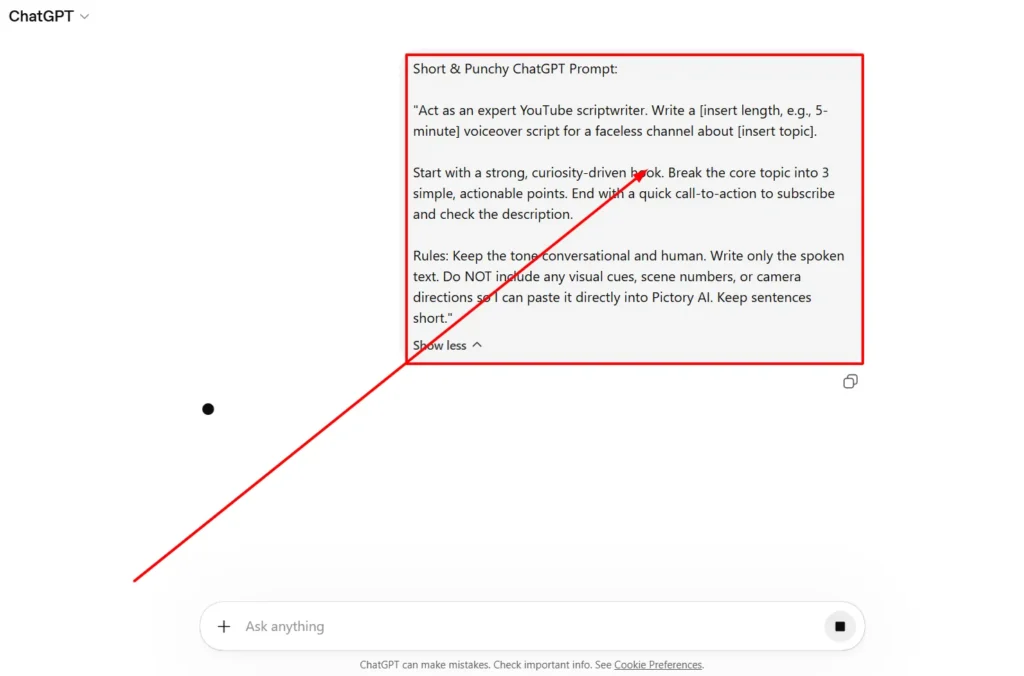
Before you open Pictory, you need a script. A 5–8 minute YouTube video typically needs around 700–1,000 words of spoken content. Use ChatGPT or any AI writing tool to draft your script based on your topic.
Keep your sentences short. Write the way people talk, not the way people write. This directly improves how natural your AI voiceover will sound inside Pictory.
Step 2: Use the Pictory AI Script to Video Tool
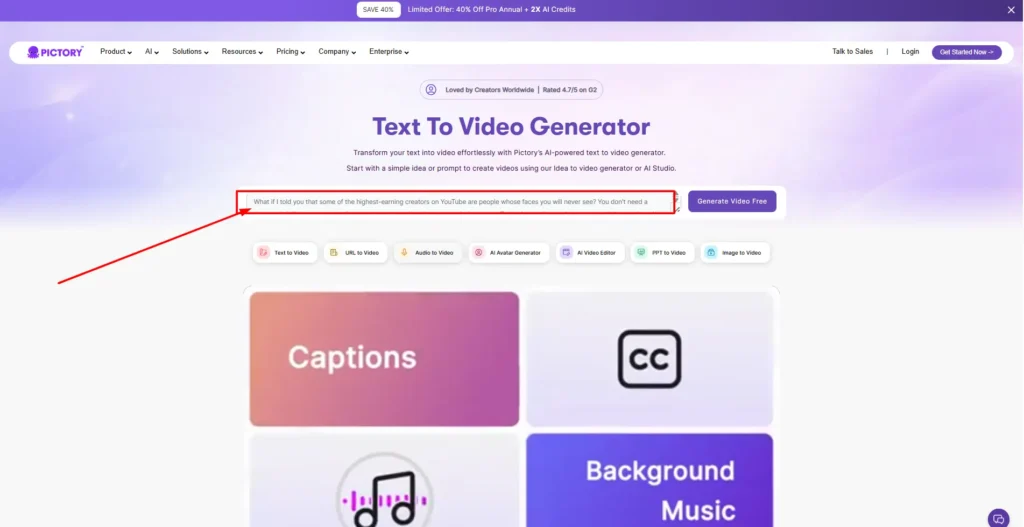
Log into your Pictory account and select “Script to Video“ from the dashboard. Paste your completed script into the editor.
Pictory will automatically divide your script into individual scenes and begin matching each scene with relevant stock footage. The platform has access to over 5 million Getty Images and Storyblocks videos on the Starter plan — and 18 million on the Professional plan.
Step 3: Customize Your Visuals and Stock Footage
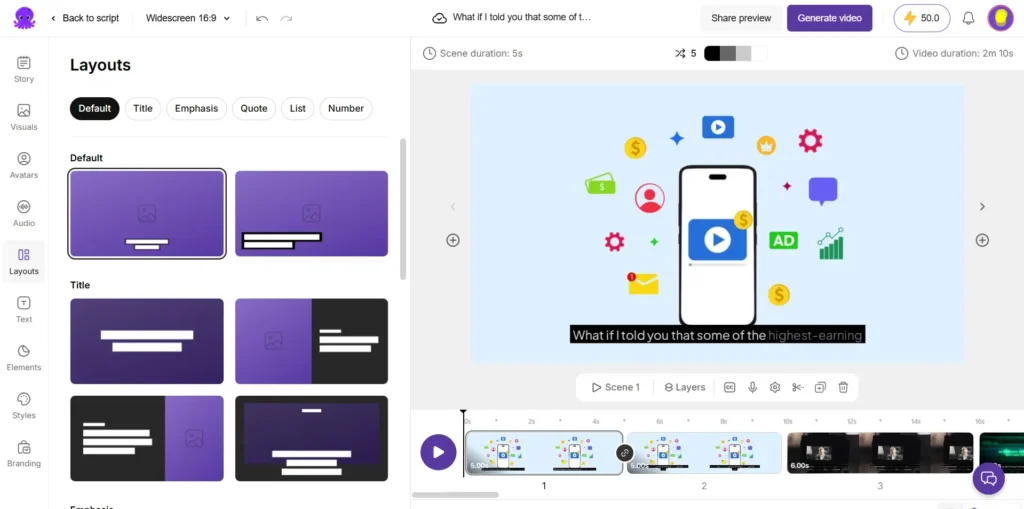
Not every auto-matched clip will be perfect, and that’s fine. You can manually swap any clip with a different one from the stock library, upload your own media, or use Pictory’s AI Studio to generate custom visuals from a text prompt.
This is a genuinely useful feature. If you’re covering a niche topic where stock footage feels generic, generating a custom image or AI video clip makes the final result feel far more tailored.
Step 4: Add Background Music and AI Voiceovers
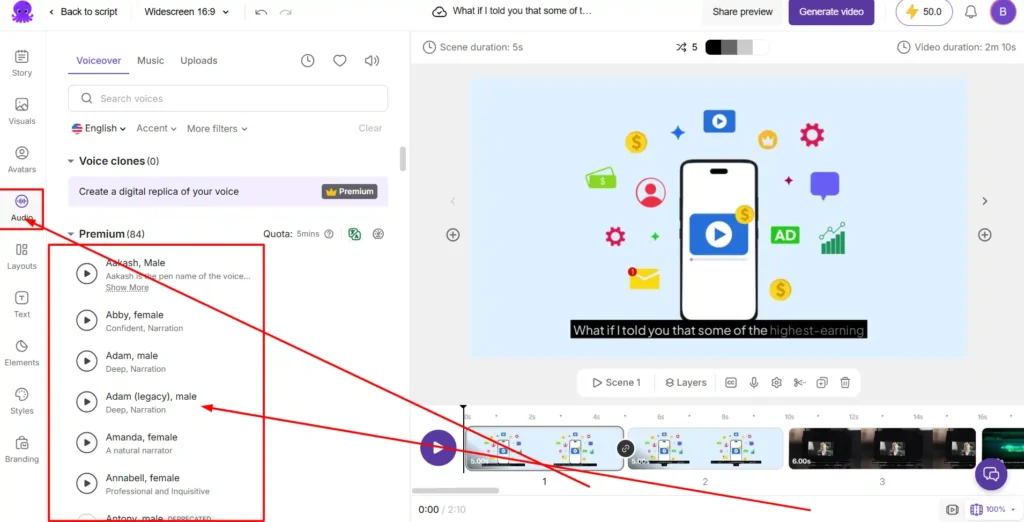
Once your scenes are set, head to the audio section. Choose an AI voice from the ElevenLabs library — Pictory offers voices in 29 different languages, which is excellent if you’re targeting non-English audiences.
Add background music from Pictory’s library of over 10,000 premium tracks (on the Professional plan). Set the music volume low — around 10–15% — so it doesn’t compete with the voiceover.
Step 5: Edit Captions and Add Branding
Pictory automatically generates captions for your video. This matters more than most creators realize. Research consistently shows that a large portion of viewers watch videos with the sound off, especially on mobile — and captions keep them engaged.
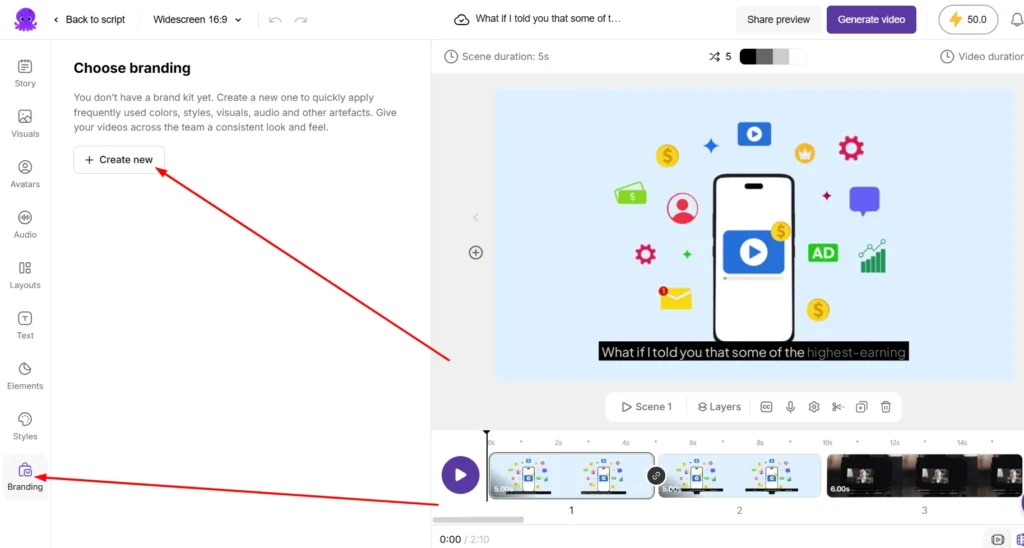
If you’re building a brand, upload your logo and brand colors using Pictory’s Brand Kit feature. The Starter plan supports 1 Brand Kit, while Professional supports up to 5. Consistent branding across videos builds channel recognition faster.
Step 6: Download and Export Your Faceless Video
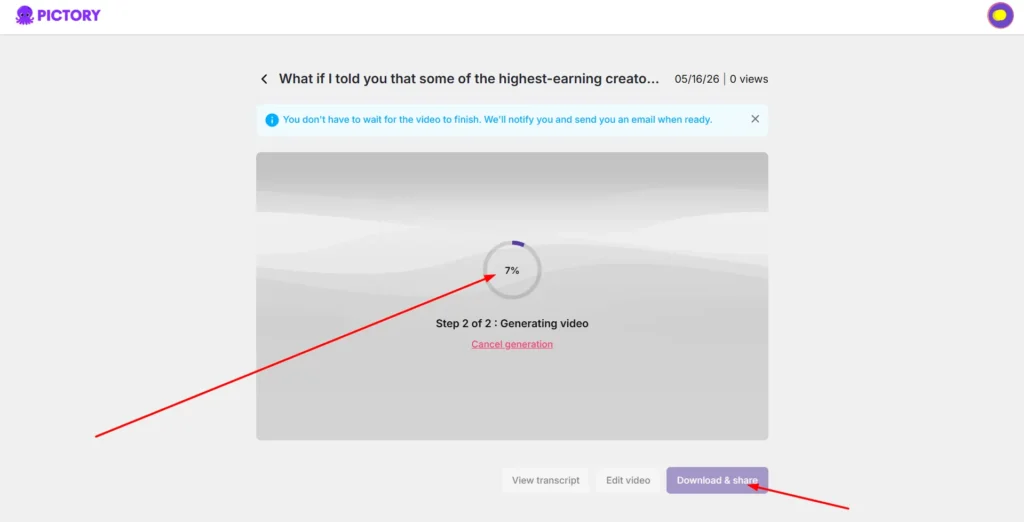
Once you’re satisfied, click export. Pictory renders your video in 1080p (on paid plans) and supports landscape (16:9), portrait (9:16), and square (1:1) formats.
This means you can export your YouTube video and then resize the same project for YouTube Shorts, Instagram Reels, or TikTok — without starting over. That’s a meaningful workflow advantage.
How to Monetize Faceless YouTube Videos Made with Pictory AI
Does YouTube Allow Monetization for AI Videos?
Yes — YouTube does allow AI-generated videos to be monetized, provided the content follows their monetization policies. The key requirements are that the content must be original, not misleading, and not violate copyright.
.Pictory’s stock footage and music library is fully licensed for commercial use, which means you won’t receive copyright strikes for the assets used inside the platform. Always check that your script content is original and not copied from other sources.
Tips for Building a YouTube Cash Cow Channel
A “cash cow” channel is a faceless YouTube channel built for passive income — typically using evergreen topics, consistent upload schedules, and strong SEO titles.
- Choose niches with high CPM: finance, insurance, software, and health consistently perform well.
- Upload 2–3 videos per week in the early months to build momentum.
- Optimize your titles and thumbnails — these drive click-through rate more than almost anything else.
- Use affiliate links in your descriptions alongside AdSense for multiple income streams (you can explore our guide on affiliate marketing for YouTube creators for a deeper breakdown.)
Pictory AI Pricing: How Much Does It Cost?
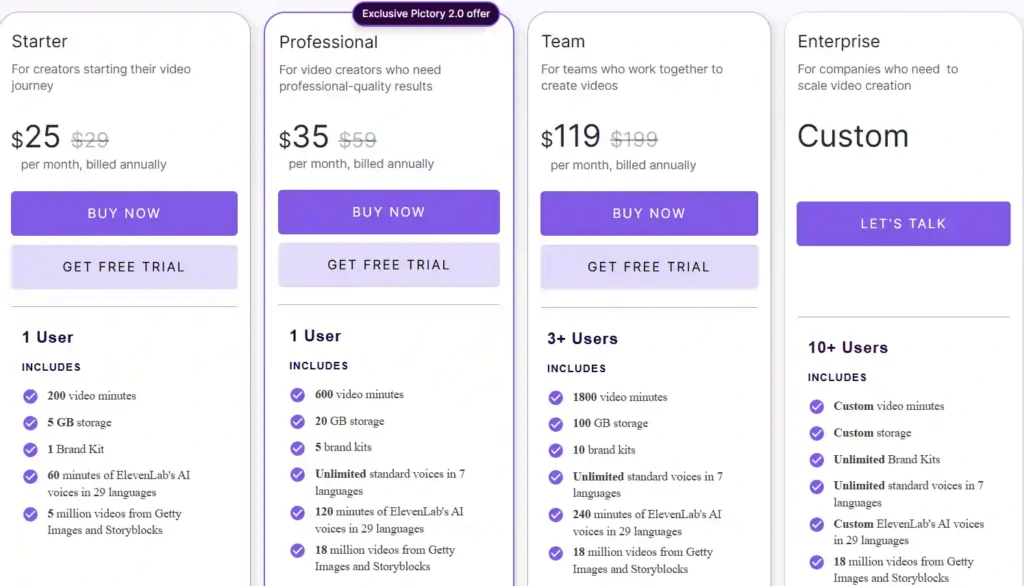
Here’s a clear breakdown of current Pictory AI plans (billed annually):
| Plan | Price/Month | Video Minutes | Storage | ElevenLabs Voices |
|---|---|---|---|---|
| Free Trial | $0 (14 days) | 15 min | Limited | Basic |
| Starter | $25/month | 200 min | 5 GB | 60 min |
| Professional | $35/month | 600 min | 20 GB | 120 min |
| Team | $119/month | 1,800 min | 100 GB | 240 min |
For most solo faceless YouTube creators, the Professional plan at $35/month is the sweet spot — the 600 video minutes gives you enough room to produce consistent weekly content without hitting limits.
Exclusive Pictory AI Discount Code (Save 20% Forever)

As a loyal reader of this blog, I’ve secured a special discount for you. Use my exclusive affiliate discount code at checkout to get 20% off any Pictory plan — including annual billing, which already saves you up to 40% on its own.
This is one of the better deals I’ve seen for this tool, especially if you’re just starting out and want to keep your costs low while building your channel.
InVideo AI vs Pictory AI: Which Is Better for Faceless Videos?
Both are popular choices, but they serve slightly different needs:
| Feature | Pictory AI | InVideo AI |
|---|---|---|
| Ease of Use | ⭐⭐⭐⭐⭐ Beginner-friendly | ⭐⭐⭐⭐ Slightly steeper curve |
| Script to Video | ✅ Yes | ✅ Yes |
| ElevenLabs Integration | ✅ Native | ❌ Not native |
| Blog to Video | ✅ Yes (URL input) | ⚠️ Limited |
| Stock Library | 18M+ assets (Pro) | Large library |
| Best For | Bloggers, long-form content | Short-form, social media |
If you’re running a blog alongside your YouTube channel — which many of you reading this are — Pictory’s blog-to-video feature alone makes it the stronger choice for your workflow.
Frequently Asked Questions About Faceless YouTube Videos
Is Pictory AI completely free to use?
Pictory offers a 14-day free trial with no credit card required. The free tier gives you 15 video minutes to test the platform before committing to a paid plan.
Are the stock videos in Pictory copyright-free?
Yes. All stock footage included in Pictory’s library is licensed for commercial use. You won’t face copyright claims for videos created using Pictory’s built-in assets.
How long does it take to create a video with Pictory AI?
A typical 5–7 minute faceless YouTube video takes between 20–40 minutes to produce from scratch — including scripting time. Experienced users who have a ready script can finish in under 20 minutes.
Can I cancel my Pictory subscription at any time?
Yes, Pictory allows you to cancel your subscription at any time. If you’re on an annual plan, you’ll retain access until the end of your billing period.
How do I apply a discount code on Pictory?
During checkout, there is a promo code field on the payment page. Enter the discount code before completing your purchase — the discount applies immediately to your total.
My Honest Take After 6 Months of Using Pictory AI
Starting a channel without showing your face used to require heavy technical skills. After spending the last six months testing video tools for my own projects, I can honestly say learning how to make faceless YouTube videos with Pictory AI completely shifts the workflow.
It removes the usual editing barriers so you can focus entirely on your storytelling. It takes a little practice to get the hang of refining the visuals, but the time saved is incredible. Take it slow, trust your creative instinct, and let the software handle the heavy lifting for you.