Making YouTube videos sounds simple — until you actually sit down to do it. Most creators waste hours jumping between tools, struggling with inconsistent visuals, robotic voiceovers, and timelines that never quite sync. If you’ve felt that frustration, you’re not alone.
Here’s where two powerful AI tools — OpenArt and Pictory AI — change the entire workflow. Together, they cover everything from AI-generated visuals to script-based video creation, making it possible for beginners, freelancers, and faceless channel creators to produce polished YouTube videos without any filming or editing experience.
I’m Nisha, and I’ve been working with AI tools for over 6 years at aiblogfirst.com. Today, I’m sharing a practical, step-by-step guide on how to create YouTube videos using OpenArt and Pictory AI — built specifically for my daily readers who want real results, not just theory.
What Is OpenArt AI and Why Creators Love It
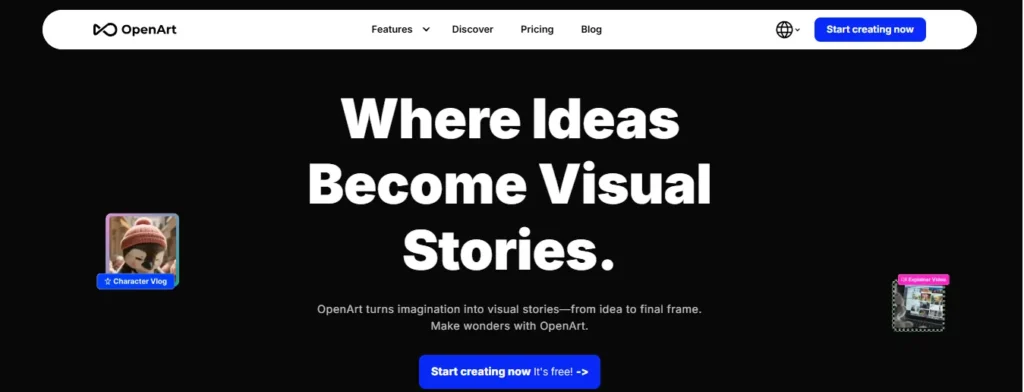
OpenArt is an AI-powered creative platform that lets you generate images, animate characters, create videos, and build consistent visual stories — all from a single dashboard. It’s trusted by millions of artists and businesses worldwide, and it’s particularly useful for YouTube creators who need high-quality AI visuals without expensive software.
What makes it different from tools like Midjourney is the full creative suite. You’re not just generating images; you’re building characters, animating scenes, syncing motion, and even adding voiceovers — all inside one platform.
Key Features That Make OpenArt Stand Out in 2026
- Image to Video — Animate any still image into a smooth video clip.
- Consistent Character Creation — Build a character once, use it in any scene.
- One-Click Story Creation — Turn your idea into a full scene-based visual story.
- Lip-Sync and Motion Sync — Add realistic movement and speech to characters.
- 100+ Premium AI Models — Access top image and video generation models in one place.
- Powerful Image Editing Suite — Inpainting, object removal, creative upscaling, and more.
OpenArt AI Pricing Plans — Free vs Paid (What You Actually Get)
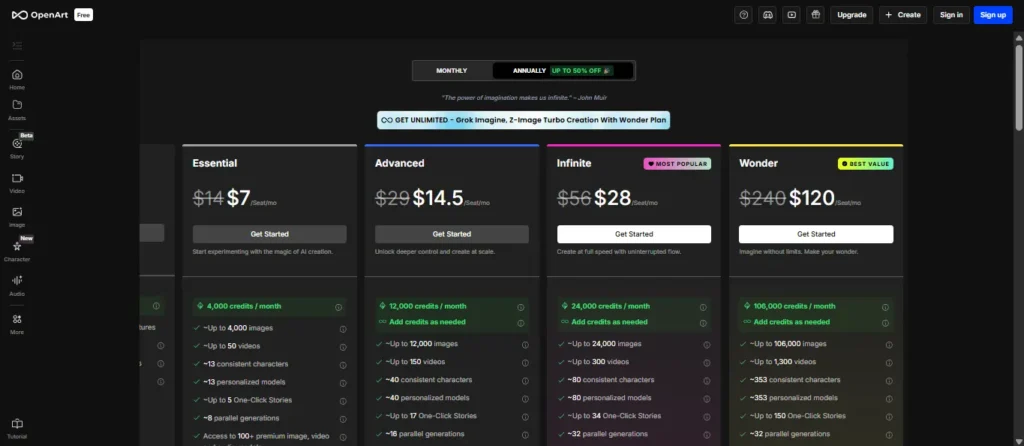
OpenArt offers a free plan with 40 trial credits for 7 days — enough to explore the platform before committing. Here’s how the paid plans break down (annual pricing):
| Plan | Monthly Price (Annual) | Credits/Month | Videos/Month | Key Benefit |
|---|---|---|---|---|
| Free | $0 | 40 (trial only) | Limited | Explore features |
| Essential | $7/seat | 4,000 | ~50 videos | Basic creation |
| Advanced | $14.5/seat | 12,000 | ~150 videos | Commercial use rights |
| Infinite | $28/seat | 24,000 | ~300 videos | Priority support |
| Wonder | $120/seat | 106,000 | ~1,300 videos | Unlimited creation |
For solo YouTube creators, the Advanced plan at $14.5/month (billed annually) is honestly the sweet spot. You get commercial use rights, 150 videos per month, and 16 parallel generations.
OpenArt AI Coupon Code 2026 — Save Up to 50% on Your Plan
🎉 Use exclusive OpenArt AI coupon code NISHA15 to get 15% off your OpenArt subscription. This discount works on paid plans and is one of the best active deals available right now. Don’t miss it — grab your plan and start creating!
OpenArt AI Coupon Code — Save 15% Today
Use code NISHA15 at checkout to get 15% off any OpenArt AI paid plan instantly.
What Is Pictory AI and How Does It Help YouTube Creators
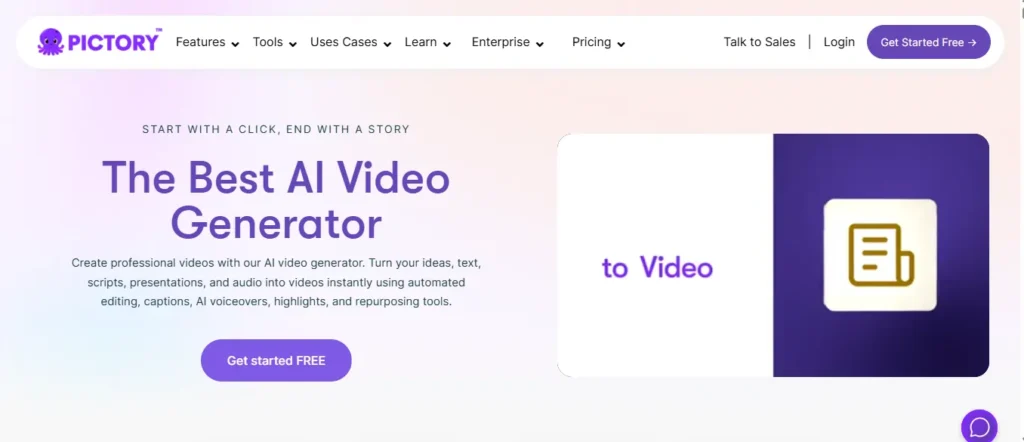
Pictory AI is a script-to-video platform built specifically for creators who want to produce professional-quality videos fast. It’s rated 4.7/5 on G2 and trusted by over 20,000 companies. You give it text, a script, a blog post, or even a URL — and it builds a full video with visuals, captions, and voiceovers.
For faceless YouTube channels, it’s genuinely one of the most complete tools available. You’re not piecing things together from five different apps; Pictory handles the structure, the editing, the audio, and the export in one clean workflow.
How Pictory AI Turns Scripts and Images Into Videos
Pictory breaks your content into scenes automatically. It matches each scene with relevant visuals from its library of 18 million Getty and Storyblocks assets, adds captions, syncs a voiceover, and delivers a publish-ready video. You can swap visuals, adjust timing, add your brand kit, and export at 1080p — all without touching a timeline editor.
You can also explore our guide on AI voice generators to pair with Pictory for even more realistic narration options.
Pictory AI Pricing Breakdown — Starter, Professional, and Team Plans
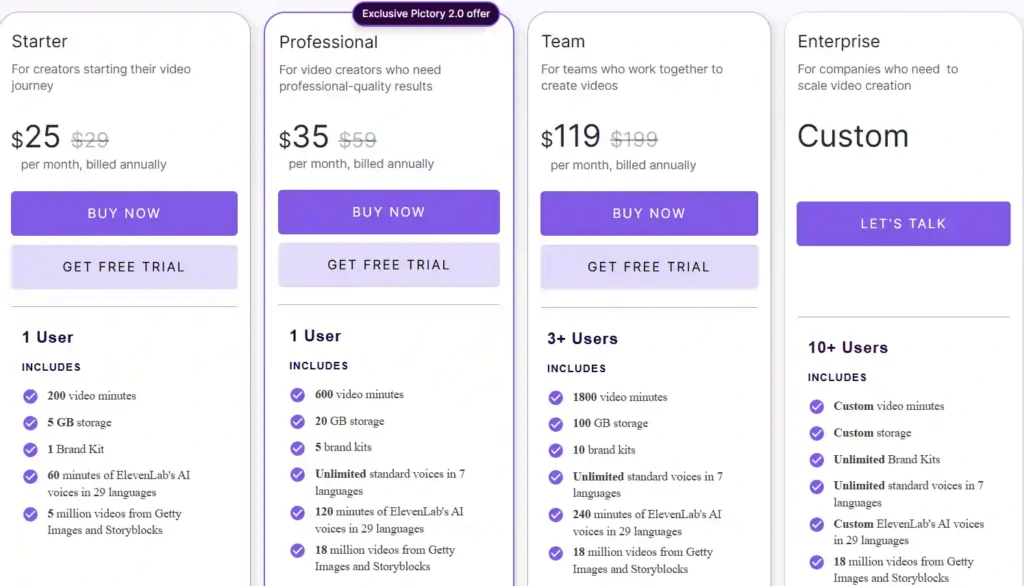
| Plan | Price (Annual) | Video Minutes/Month | Storage | ElevenLabs Voices | AI Credits |
|---|---|---|---|---|---|
| Starter | $25/month | 200 minutes | 5 GB | 60 minutes | 100 credits |
| Professional | $35/month | 600 minutes | 20 GB | 120 minutes | 1,000 credits |
| Team | $119/month | 1,800 minutes | 100 GB | 240 minutes | 2,400 credits |
| Enterprise | Custom | Custom | Custom | Custom | Custom |
For most YouTube creators starting out, the Professional plan at $35/month is worth it. You get 600 video minutes, 5 brand kits, 18 million stock assets, and 1,000 AI credits — more than enough for consistent content output.
All plans include: no watermark, auto captions, text-based video editing, B-roll support, and 1080p export.
Pictory AI Coupon Code 2026 — Exclusive Discount for New Users
🎉 Use Pictory AI coupon code CABF20 to get 20% off your Pictory subscription. This is one of the highest discounts currently available and works on all paid plans. Apply it at checkout to start saving immediately.
Pictory AI Coupon Code — Save 20% Today
Use code CABF20 at checkout to get 20% off your Pictory AI subscription instantly.
How OpenArt and Pictory AI Work Together for YouTube
These two tools solve different problems. OpenArt handles the visual creation — generating images, animating characters, building consistent scenes. Pictory handles the video production — scripting, editing, voiceovers, captions, and export.
Together, they cover the entire YouTube video creation pipeline without a camera, without a studio, and without advanced editing skills.
The Exact Workflow — From Idea to Finished YouTube Video
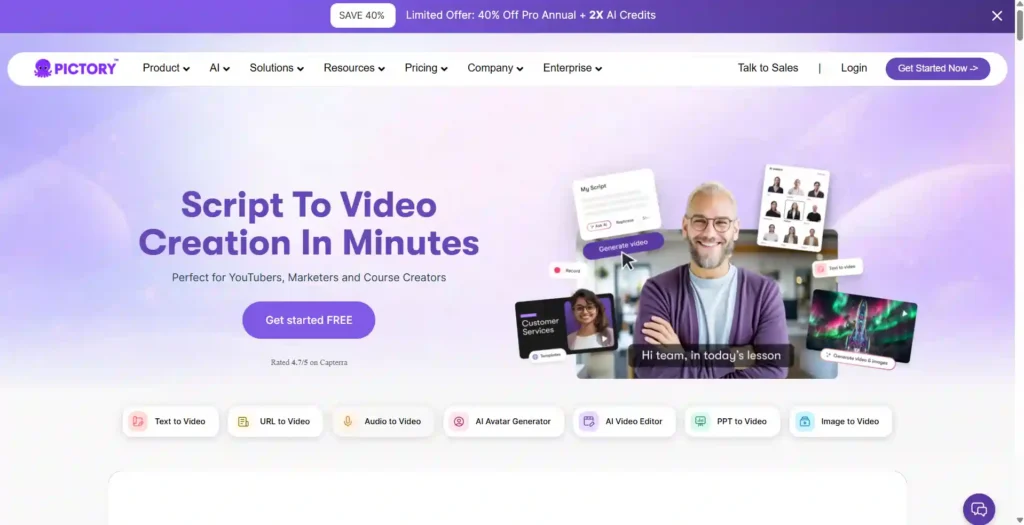
- Write your video script or use Pictory’s AI Script Generator.
- Generate custom visuals and animated clips in OpenArt.
- Export OpenArt assets and upload them into Pictory.
- Let Pictory build the scene structure and add stock B-roll where needed.
- Add an AI voiceover via ElevenLabs voices built into Pictory.
- Apply captions, brand kit, and music.
- Export at 1080p and upload to YouTube.
Why This Combination Works Better Than Using One Tool Alone
Pictory’s stock library is excellent, but for creators who want a unique visual style — custom characters, specific scenes, branded aesthetics — it can feel limiting. That’s where OpenArt fills the gap. You design exactly what you need, animate it, and bring it into Pictory for final production. The result is a video that looks custom-built, not templated.
Step-by-Step — How to Create YouTube Videos Using OpenArt + Pictory AI
Step 1 — Generate AI Images and Video Clips in OpenArt
Log into OpenArt and head to the Create section. Use the Image Generator to build your scenes using text prompts. If you need a consistent host character, use the Character Creation tool — upload one reference image and OpenArt will generate that same character in any pose or setting.
For video clips, use Image to Video or the Animate Video feature to bring static images to life. Export each clip in MP4 format.
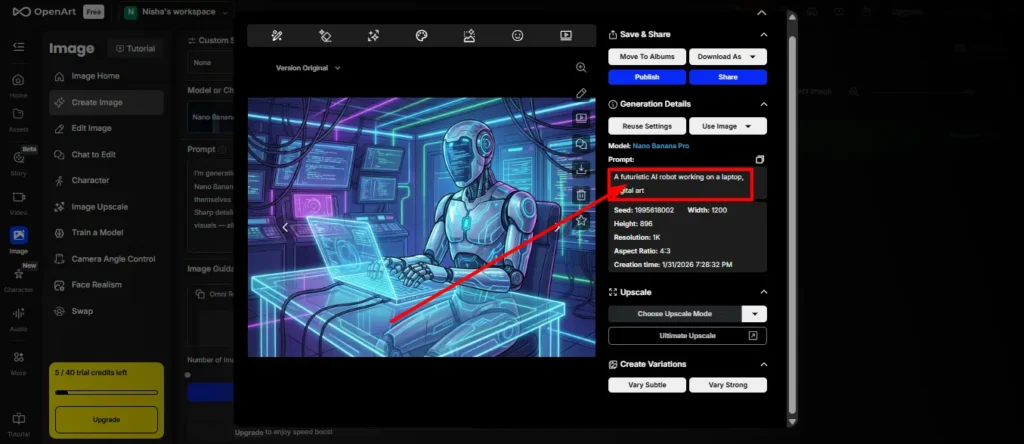
Step 2 — Export Your OpenArt Visuals (Best Format Settings)
Before leaving OpenArt, make sure you export at the highest resolution available. For YouTube, aim for 1080p or higher. Use MP4 for video clips and PNG for still images. Keep file sizes manageable — Pictory’s Starter plan supports up to 1GB per file, while Professional supports up to 5GB.
Step 3 — Upload Visuals Into Pictory AI and Build Your Video
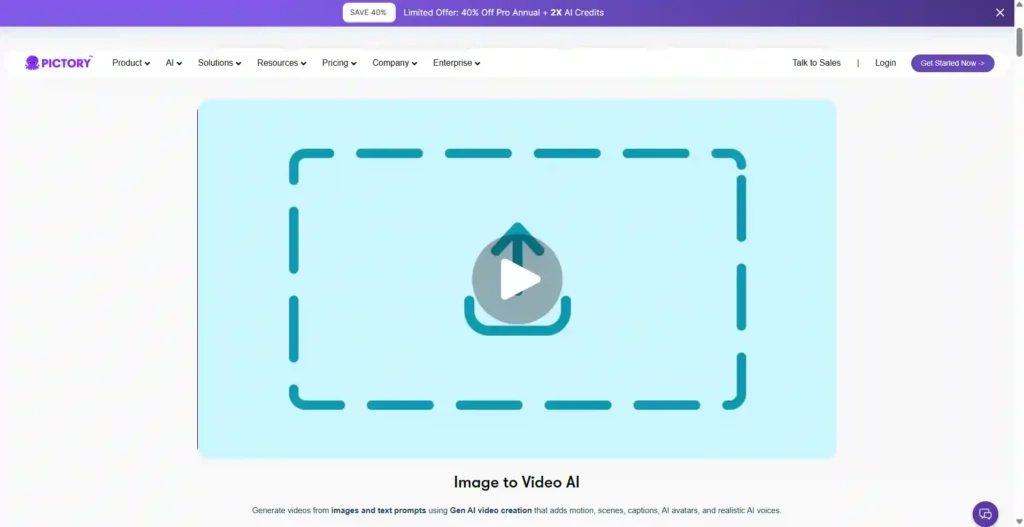
Open Pictory and start a new project using Script to Video or Image to Video. Paste your script and let Pictory auto-generate the scene structure. Then, swap the default stock visuals with your OpenArt exports by uploading them directly from your device. Position each clip or image to match the corresponding scene.
Step 4 — Add AI Voiceover, Captions, and Background Music in Pictory
Pictory integrates ElevenLabs AI voices directly — you get 60–240 minutes of realistic voiceover depending on your plan. Choose a voice that fits your channel’s tone, adjust pacing, and sync it to your scenes automatically. Enable auto captions for accessibility and better viewer retention. Add background music from Pictory’s library of 5,000–15,000 premium tracks.
Step 5 — Export and Publish Your YouTube Video
Preview your video inside Pictory’s editor. Check caption timing, visual transitions, and audio levels. Once satisfied, export at 1080p in landscape (16:9) for standard YouTube uploads. For YouTube Shorts, switch to portrait (9:16) — Pictory handles the resize automatically. Download and upload directly to your YouTube channel.
OpenArt AI vs Other AI Image Tools — Which One Is Better for YouTube?
OpenArt vs Midjourney for YouTube Video Assets
| Feature | OpenArt | Midjourney |
|---|---|---|
| Video Generation | ✅ Yes | ❌ No |
| Character Consistency | ✅ Yes | ⚠️ Limited |
| Image Editing Suite | ✅ Full suite | ❌ No |
| Free Plan | ✅ Yes | ❌ No |
| Commercial Use | ✅ Advanced+ plans | ✅ Paid plans |
| Workflow Integration | ✅ Full suite | ❌ Discord-based |
For YouTube video creation specifically, OpenArt wins. Midjourney produces beautiful images, but you can’t animate them, maintain character consistency, or export directly for video workflows inside the same platform.
OpenArt vs Leonardo AI — Features, Pricing, and Value
Both are strong tools for AI image generation. Leonardo AI has solid video features too, but OpenArt’s One-Click Story Creation and Character + World building give it an edge for structured YouTube content. If your channel relies on storytelling with recurring characters, OpenArt is the more complete solution.
You can also explore our comparison of AI image generators to see how these tools stack up across more categories.
Pictory AI vs Other Video Tools — Is It Worth It for Creators?
Pictory AI vs InVideo — Which Is Better for Faceless YouTube Channels?
| Feature | Pictory AI | InVideo |
|---|---|---|
| Script to Video | ✅ Advanced | ✅ Good |
| Stock Library | 18M assets | 16M+ assets |
| ElevenLabs Voices | ✅ Built-in | ❌ Limited |
| Brand Kits | Up to 10 | Limited |
| AI Credits | Up to 2,400/month | Varies |
| Pricing (Annual) | From $25/month | From $25/month |
Pictory’s ElevenLabs voice integration and brand kit system make it stronger for creators who need a consistent, professional output at scale.
Pictory AI vs Synthesia — Comparing Script-to-Video Capabilities
Synthesia is excellent for corporate training and avatar-led videos, but it’s significantly more expensive for solo creators. Pictory gives you more flexibility — stock visuals, AI Studio, custom brand kits, and a broader range of export formats — at a much lower price point.
Can You Monetize YouTube Videos Made With OpenArt and Pictory AI?
YouTube Monetization Rules for AI-Generated Content (2026 Update)
Yes, you can monetize AI-generated YouTube videos — but YouTube requires you to disclose when content is AI-generated, especially for realistic-looking footage. Label your videos appropriately in the upload settings. Channels using AI tools for faceless content are actively monetizing on the platform today.
Commercial Use Rights — What OpenArt and Pictory AI Allow
- OpenArt: Commercial use is included on the Advanced plan and above. The Essential plan does not include commercial rights.
- Pictory: All paid plans include commercial use rights for exported videos. Stock assets from Getty and Storyblocks are licensed for commercial use through Pictory’s subscription.
Tips to Make Your AI YouTube Videos Rank and Get Views
How to Optimize AI Videos for YouTube SEO
- Include your target keyword in the video title, description, and first 100 characters.
- Add timestamps (chapters) to improve watch time and searchability.
- Use closed captions — Pictory auto-generates these, and YouTube indexes them.
- Upload a custom thumbnail — even AI-created ones perform well with clear text overlays.
- Post consistently — YouTube’s algorithm rewards regular upload schedules.
Best Thumbnail and Title Strategies for Faceless AI Channels
Use OpenArt to generate eye-catching thumbnail visuals that match your brand’s color palette. Keep titles under 60 characters, lead with the benefit, and avoid clickbait. Channels that use consistent character visuals across thumbnails tend to build stronger brand recognition faster.
Frequently Asked Questions
Is There a Free Trial for OpenArt AI?
Yes. OpenArt offers a free plan with 40 trial credits valid for 7 days. You can join their Discord community for an additional 50 trial credits on top of that.
Does Pictory AI Offer a Discount Code for 2026?
Yes — use coupon code CABF20 for 20% off any Pictory AI paid plan at checkout.
How Many Videos Can I Make Per Month on Each Plan?
On Pictory’s Professional plan, you get 600 video minutes per month. On OpenArt’s Advanced plan, you can generate approximately 150 videos per month.
Can Beginners Use OpenArt and Pictory AI Without Technical Skills?
Absolutely. Both tools are designed for non-technical users. Pictory’s 4-step workflow and OpenArt’s prompt-based creation mean you don’t need any video editing or design experience to get started.
What Is the Best Pictory AI Plan for a Solo YouTube Creator?
The Professional plan at $35/month (billed annually) is the most practical for solo creators. It includes 600 video minutes, 5 brand kits, ElevenLabs voices, and 1,000 AI credits — everything you need for consistent YouTube content output.
Ready to Create YouTube Videos With OpenArt and Pictory AI?
Creating YouTube videos used to require expensive equipment, editing software, and hours of work. That gap has genuinely closed. With OpenArt handling your visuals and Pictory AI managing the production side, the entire process becomes something a single creator can realistically manage — even on a busy schedule.
The workflow shared here isn’t theoretical. It’s practical, repeatable, and built around tools that actually deliver results. Start small, experiment with a few scenes, and see how the output feels. Once you get comfortable, the process becomes surprisingly fast.
Good content still needs a human behind it — AI just removes the hard parts.