Turning a written script into a finished video usually means juggling several tools: one for scenes, one for voiceover, and another for editing. OpenArt’s script to video feature aims to bring those steps into one place, so you can paste a story or script and get a scene-by-scene AI video.
The questions most people have are practical. How does the process work, what does it cost, and can characters stay consistent from scene to scene? Pricing, credits, and free access also matter before you commit.
Below, you will find how OpenArt AI script to video works, where it fits for YouTube Shorts and faceless channels, and how it compares with other AI video generators.
What Is OpenArt AI Script to Video?
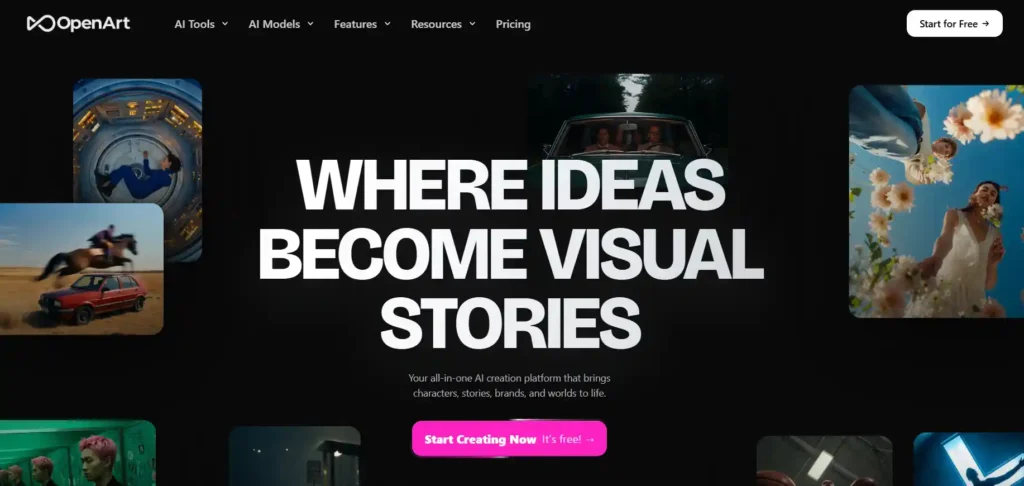
OpenArt AI script to video is a workflow that turns a written script or story idea into a sequence of AI-generated video scenes. OpenArt is an all-in-one AI creation platform. It offers image, video, audio, and character tools, with access to 100+ premium image, video, and audio models on its paid plans.
OpenArt does not label this as one single button. The workflow runs through its video tools, mainly Director Mode, which is described as “full film / long video,” and Smart Shot, which produces a storyboard sheet plus a cinematic video. Chat Mode also lets you describe what you want in plain language.
Get 15% Off OpenArt With Code NISHA15
Apply code NISHA15 at checkout to save 15% on your OpenArt purchase.
How OpenArt AI Script to Video Turns a Script Into Scenes
The general process works in three stages. The platform reads your script and breaks it into scenes or shots. It then generates visuals for each scene using an image or video model. Finally, it assembles the clips into a longer video, which you can refine.
OpenArt also lists ready-made starting points under “Direct Your Video,” including Short Film, Explainer, Social Content, Micro Drama, and Product Ads. These help you match the format to your script.
Who OpenArt AI Script to Video Is Best For
This workflow suits people who need video from written ideas without filming or manual editing:
- YouTube and faceless-channel creators who turn narrated stories into visual content.
- Short-form creators making clips for Shorts, Reels, or TikTok.
- Marketers and small businesses making explainers, product ads, or social content.
- Writers and storytellers testing short films or micro dramas before investing in full production.
How to Use OpenArt AI Script to Video, Step by Step
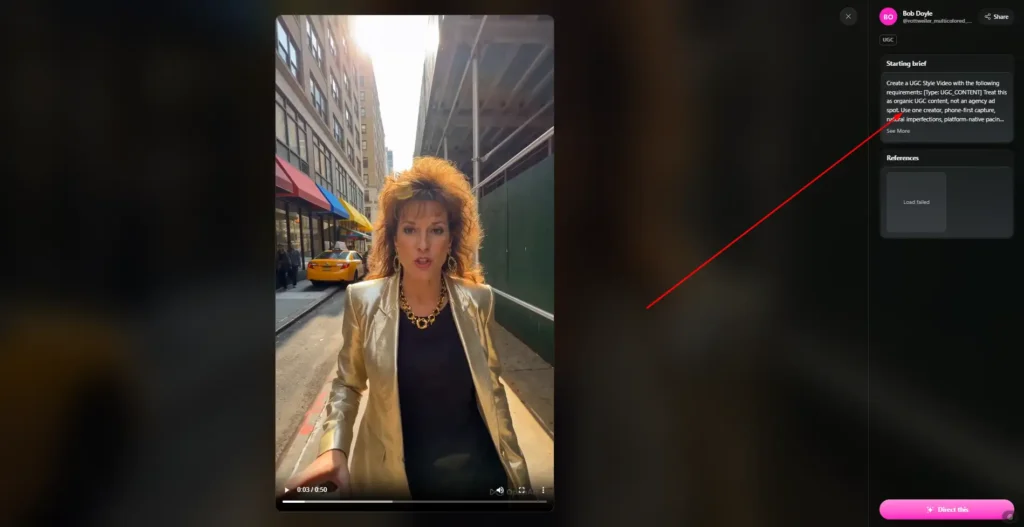
The exact buttons and options can change as OpenArt updates its tools, and they differ by mode and model. The overall workflow stays consistent.
Step 1: Prepare Your Script for OpenArt AI Script to Video
Good input leads to better scenes. Before you start:
- Keep your script clear and split into short beats, one idea per scene.
- Name your characters and describe how they look.
- Note the setting, mood, and visual style for each part.
- Decide your format and length (a 30-second Short is very different from a multi-minute story.)
Step 2: Choose Your Style, Characters, and Model
Open Director Mode for longer stories, or Smart Shot if you want a storyboard first. Pick the video type that fits, such as Short Film or Explainer. Then set up your characters so they look the same across scenes.
OpenArt offers several video models. Its homepage highlights Kling 4 for consistent characters and precise camera moves, and Seedance 2.5 for videos up to 30 seconds with frame-level editing. Model choice affects both quality and credit use.
Step 3: Generate, Edit, and Export Your Video
Generate your scenes, then review them. Regenerate weak shots instead of accepting the first result. The Edit Video tool lets you modify or retake clips, and the audio tools cover voiceover.
If you want to reach a wider audience, Dub Video can translate your video into 24 languages with optional lip sync. When you are happy with the result, export it. Paid plans are listed as watermark-free.
Key Features of OpenArt AI Script to Video
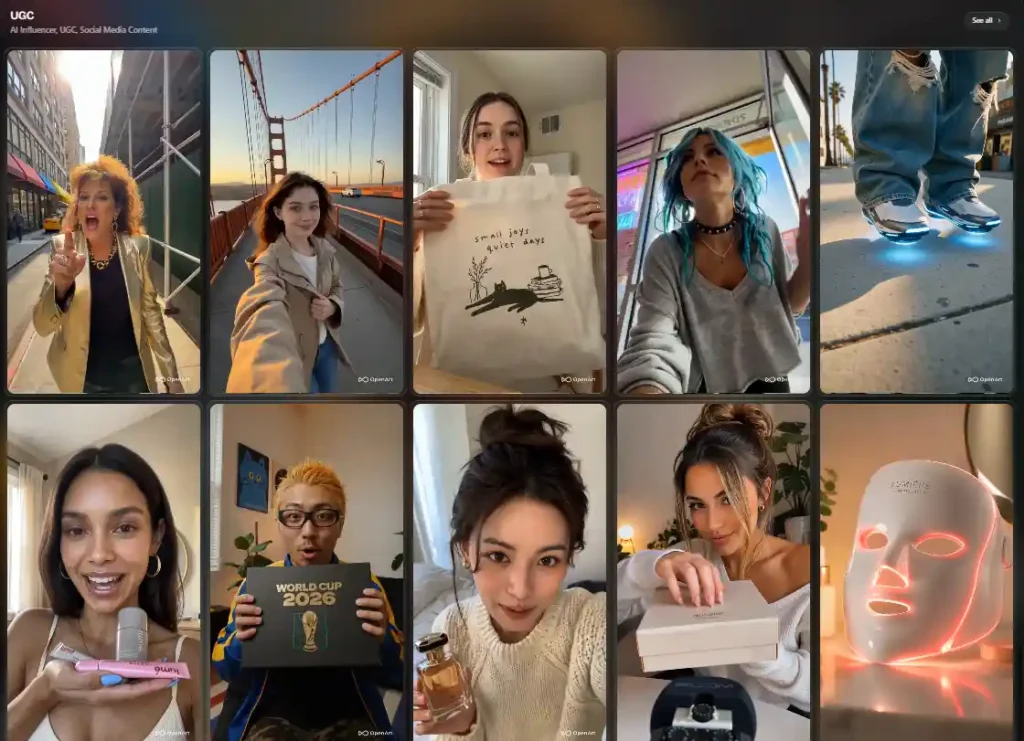
Consistent Characters Across Scenes
Character consistency is one of the hardest parts of AI storytelling. OpenArt has a dedicated Character tool, and every plan lists a consistent-character allowance: up to about 13 on Starter, 40 on Plus, 80 on Pro, and 353 on Wonder. This matters most for stories where the same person or creature appears in many scenes.
Access to Multiple Video and Audio Models
Instead of locking you into one engine, OpenArt gives you access to many models in one account. That lets you compare outputs and choose the right model for each scene. It also means results will vary by model, so some experimentation helps.
Watermark-Free Exports and Commercial Use Rights
All listed plans are watermark-free. Commercial use rights are listed for Plus, Pro, and Wonder, but not for Starter. If you plan to monetize videos on YouTube or use them for client work, that difference matters.
OpenArt AI Script to Video Pricing and Credits
OpenArt uses a credit-based subscription. The prices below are those shown on OpenArt’s pricing page when this article was written. The page has a monthly and annual toggle, with annual billing advertised as up to 27% off, so the price you see depends on the option selected.
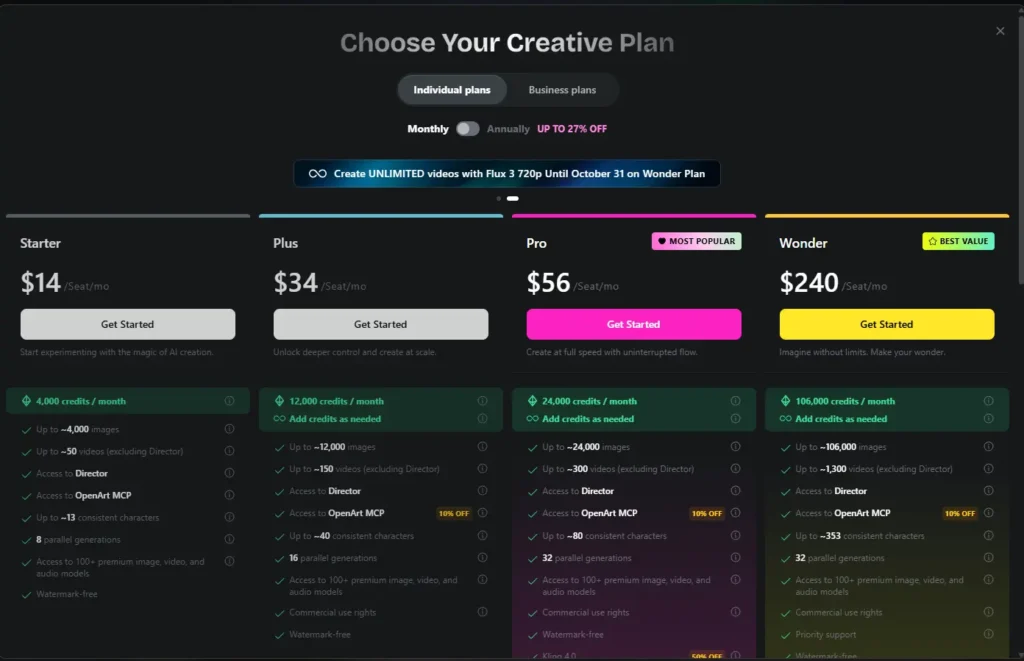
OpenArt Plans Compared: Starter, Plus, Pro, and Wonder
| Plan | Price shown | Monthly credits | Approx. videos* | Consistent characters | Parallel generations | Commercial rights |
|---|---|---|---|---|---|---|
| Starter | $14/mo | 4,000 | Up to ~50 | Up to ~13 | 8 | Not listed |
| Plus | $34/mo | 12,000 | Up to ~150 | Up to ~40 | 16 | Yes |
| Pro | $56/mo | 24,000 | Up to ~300 | Up to ~80 | 32 | Yes |
| Wonder | $240/mo | 106,000 | Up to ~1,300 | Up to ~353 | 32 | Yes |
*OpenArt’s estimates exclude Director Mode.
All plans include access to Director Mode and OpenArt MCP. Pro is labeled “Most Popular,” and Wonder is labeled “Best Value” and adds priority support.
How Credits Work With OpenArt AI Script to Video
Every generation uses credits. OpenArt’s own estimates work out to roughly 80 credits per video, but this is an “up to” figure. Actual cost depends on the model, video length, and settings. Director projects are excluded from the video estimates, so longer script-based projects may use credits differently.
If you run out, Plus and higher plans let you add credits as needed. There is also an optional Extra Credit add-on at $15 per month for 5,000 credits, which requires a Plus subscription.
Is There a Free Plan or Discount for OpenArt AI Script to Video?
OpenArt shows a “Start for Free” button, so you can begin without paying. The pages reviewed here do not spell out what free access includes, and no coupon code was listed. Treat any third-party “promo code” claim with caution.
What OpenArt does advertise are time-limited, model-specific promotions. At the time of writing, these included 30% off GPT Image 2.6, 50% off Seedream 5.5, 50% off Kling 4, and 30% off Recraft V4.1 models, with end dates in mid-to-late November. These apply to specific models, not to whole subscriptions, and they may change.
Pros and Cons of OpenArt AI Script to Video
Pros
- Image, video, audio, and character tools in one platform.
- Access to 100+ premium models.
- Dedicated tools for consistent characters, editing, lip sync, and dubbing.
- Watermark-free output on listed plans.
- Entry plan priced at $14/mo on the pricing page.
Cons
- Credit-based pricing means heavy use can get expensive.
- Commercial use rights are not listed for Starter.
- Video estimates exclude Director Mode, which makes full-script cost harder to predict.
- Free access details are not clearly stated.
- With many tools and models, beginners may need time to find the right setup.
OpenArt AI Script to Video vs Alternatives
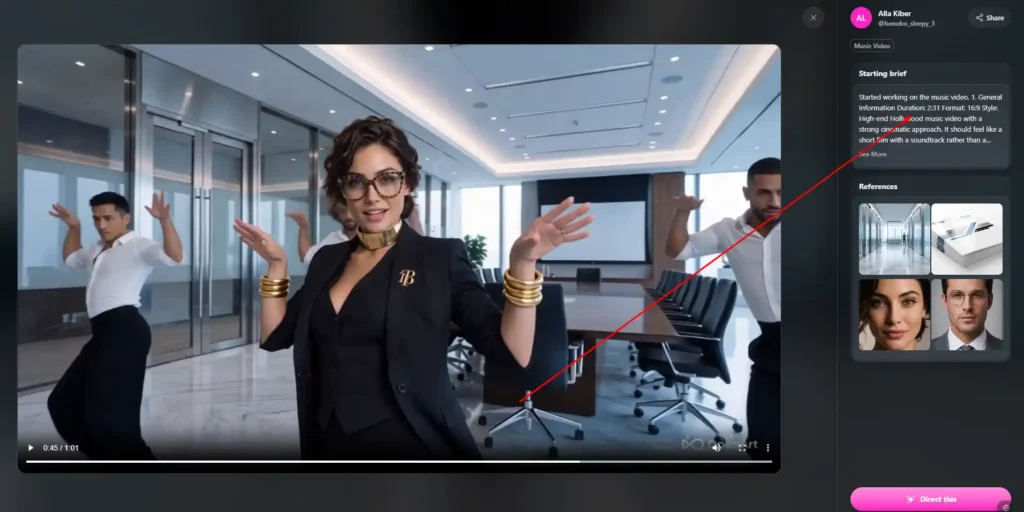
OpenArt AI Script to Video vs Runway
Runway is a well-known AI video platform built around its own video models and editing tools. OpenArt’s main difference is breadth. It brings many models and creative tools into one account, with a stronger focus on characters, storyboards, and story formats.
Runway may suit you better if you prefer a focused video-editing environment built around one model family. OpenArt may suit you better if you want to switch between models and build a story from script to final export. Compare current pricing and features on both sites before choosing, since both change often.
Other AI Script to Video Generators Worth Considering
- Pika and Luma: AI video generators suited to short, creative clips.
- Kling and other model-native platforms: useful if you only need one specific model.
- InVideo AI and Pictory: built for turning scripts and articles into narrated, stock-style videos.
- Synthesia: focused on AI avatar presenters for business and training videos.
The right choice depends on whether you want cinematic AI scenes, stock-footage explainers, or avatar presenters.
OpenArt AI Script to Video FAQs
Is OpenArt AI script to video free to use?
OpenArt offers a “Start for Free” option, but the details of free access are not clearly stated on the pages reviewed. Paid plans start at $14/mo on the pricing page, and generations use credits.
Can OpenArt AI script to video keep the same character across scenes?
OpenArt provides a dedicated Character tool and lists consistent-character allowances on every plan. Kling 4 is also described as supporting consistent characters. Results still vary by model and prompt, so review each scene.
Can I use OpenArt AI script to video videos commercially?
Commercial use rights are listed for the Plus, Pro, and Wonder plans, but not for Starter. If you plan to monetize your videos, check the plan terms before publishing.
How many credits does OpenArt AI script to video use?
It depends on the model, video length, and settings. OpenArt’s plan estimates work out to roughly 80 credits per video, excluding Director Mode, so longer script-based projects may differ.
Is OpenArt AI Script to Video Worth It? Our Verdict
Based on OpenArt’s published plans and features, OpenArt is a strong option for creators who want scripted stories, consistent characters, and multiple models in one place. It is less ideal if you want a simple, fixed-cost tool or need commercial rights on the lowest tier.
Start with the free option if you want to explore, then consider Plus if you plan to publish commercially. Because credits drive the real cost, test a short script first and see how many credits it uses before upgrading. This verdict relies on OpenArt’s public information, not hands-on testing.