Hi, this is Nisha from AiBlogFirst, and OpenArt has been part of my daily workflow for the past year now.
Most people open OpenArt for the first time and freeze. So many models, tools, and credit options appear at once that the platform feels more confusing than creative. A single wrong click can burn credits meant for something else, and beginners often end up unsure where to even start.
This confusion is common, especially for creators and marketers trying to move fast without wasting resources. Understanding how OpenArt actually works, from generation to editing to character consistency, makes a real difference in output quality and cost. Let’s walk through it properly, one section at a time.
What Is OpenArt and How Does It Work?
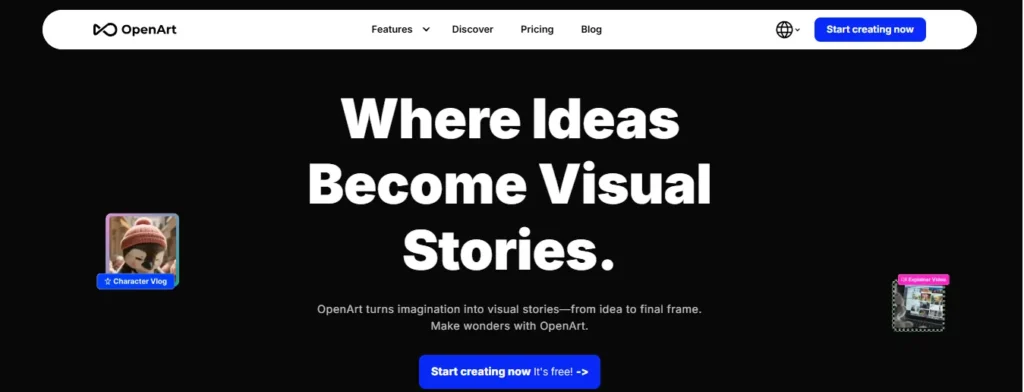
OpenArt is an AI creator studio that bundles image generation, video generation, editing, and character tools into one workspace. Instead of using five separate apps, you generate, edit, and refine everything from a single dashboard.
At its core, OpenArt runs on a credit system. Every action, generating an image, rendering a video, upscaling, editing, pulls credits from a monthly pool tied to your plan. That’s genuinely different from apps that offer flat “unlimited” access, and it’s the first thing people get wrong when they sign up.
OpenArt Discount: Save 15% With Nisha’s Code
Use code NISHA15 at checkout to get 15% off your OpenArt subscription plan today.
Key Features That Make OpenArt Different
What actually separates OpenArt from a basic AI image generator is the sheer range packed into one account:
- Access to 100+ premium image, video, and audio models.
- Consistent character training across scenes.
- One-Click Story Creation.
- A full image and video editing suite (inpainting, VFX, relighting.)
- Director mode for storyboard-style planning.
- MCP access for developers who want to connect OpenArt to other tools.
I’ve tested tools that specialize in just one of these, and OpenArt’s real strength is not having to switch platforms mid-project.
Who Should Use OpenArt (Beginners, Creators, Marketers)
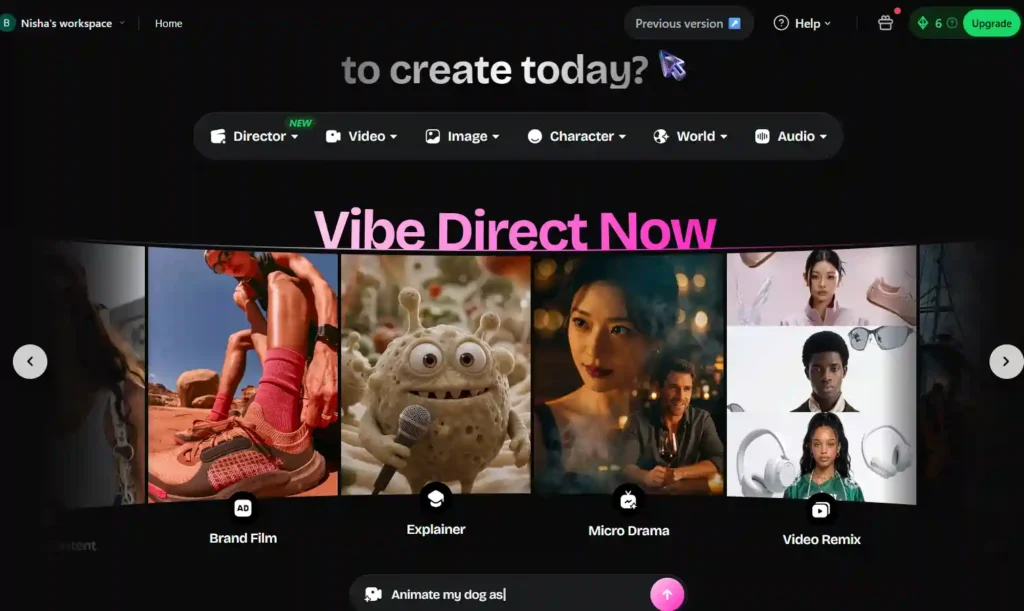
OpenArt works well for a few very different audiences, and each one uses it slightly differently:
- Beginners exploring AI art without technical setup.
- Content creators producing consistent visuals for YouTube, Instagram, or blogs.
- Marketers building product ads, UGC-style content, or campaign visuals.
- Small agencies replacing multiple stock and design tools with one subscription.
If you fall into more than one category, that’s fine. Most of our readers do.
How to Create an OpenArt Account and Get Started
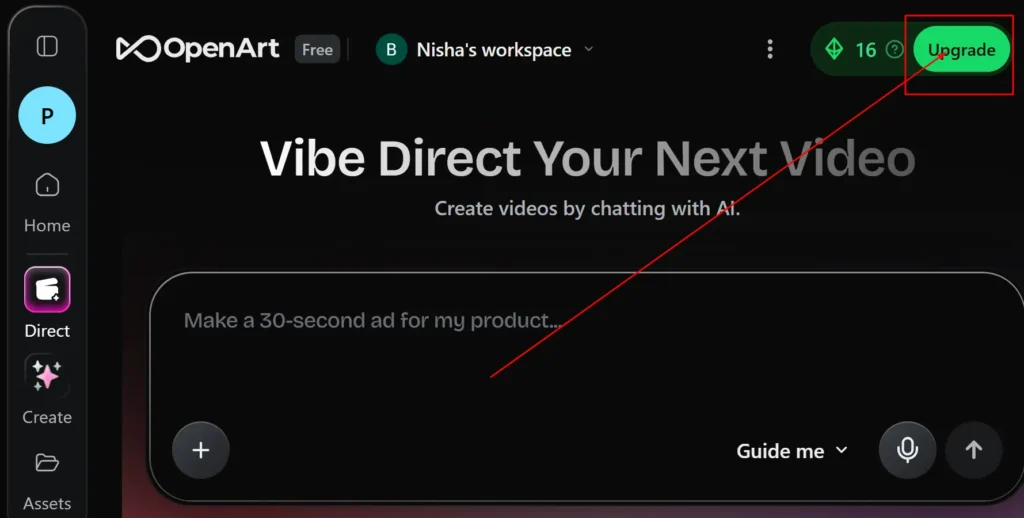
Getting started takes a few minutes. Head to OpenArt, sign up with email or Google, and you’ll land directly on the home dashboard where it asks, “What would you like to create today?”
There’s no separate onboarding maze. You pick a creation type, Video, Image, Character, World, or Audio, and it takes you straight into the tool.
How to Set Up Your OpenArt Workspace
Before generating anything, it’s worth spending two minutes on your workspace setup:
- Name your workspace (useful if you manage multiple brands or clients.)
- Set up your Brand Kit if you’re creating for a business.
- Check your free credit balance under your account icon.
- Pin the tools you’ll use most (Motion Sync, Edit Image, and Lip-Sync are common pins.)
This small step saves a lot of scrolling later.
How to Use OpenArt to Generate Images
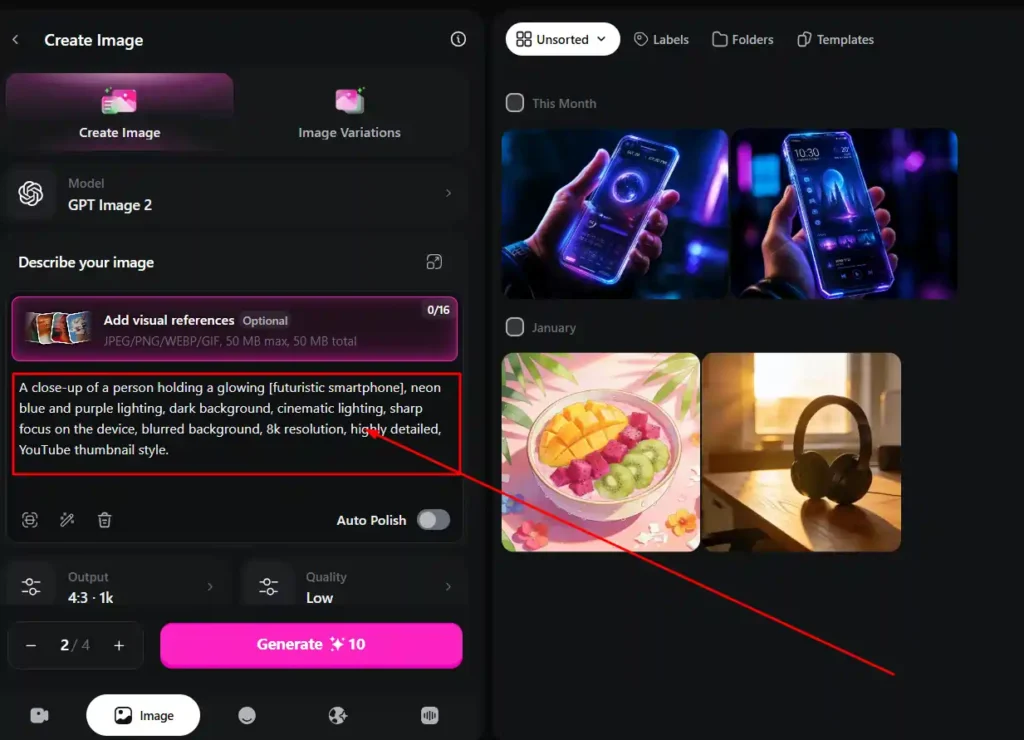
Image generation is where most people start, and honestly, it’s the easiest part of the platform to learn.
How to Write Prompts Using OpenArt’s Create Image Tool
Open the Create Image tool, type your prompt, and choose a model. OpenArt also includes a Magic Prompt feature that expands a simple line like “a cat on a mountain” into a fuller, more descriptive prompt automatically.
A few things I’ve learned from regular use:
- Specific prompts beat vague ones every time.
- Mentioning lighting, mood, or camera style improves output quality noticeably.
- Generating in small batches (4–8 images) is more credit-efficient than mass generating.
How to Choose the Right AI Model on OpenArt (100+ Models Explained)
This is where OpenArt actually stands apart from single-model tools. You’re not locked into one engine.
| Use Case | Recommended Model Type |
| Photorealistic portraits | High-fidelity diffusion models (e.g., Seedream) |
| Anime or stylized art | Style-specific models |
| Fast, lightweight drafts | Lite models (lower credit cost) |
| Product or ad visuals | Commercial-grade image models |
Switching models is a click, not a new subscription, which is genuinely convenient once you get used to it.
How to Use Camera Angle Control and Multi View on OpenArt
If you need product shots or character sheets from multiple angles, Multi View generates up to 9 camera angles from a single image. Camera Angle Control lets you adjust the angle manually before generating, which is useful for consistency across a set.
How to Use OpenArt for Video Generation
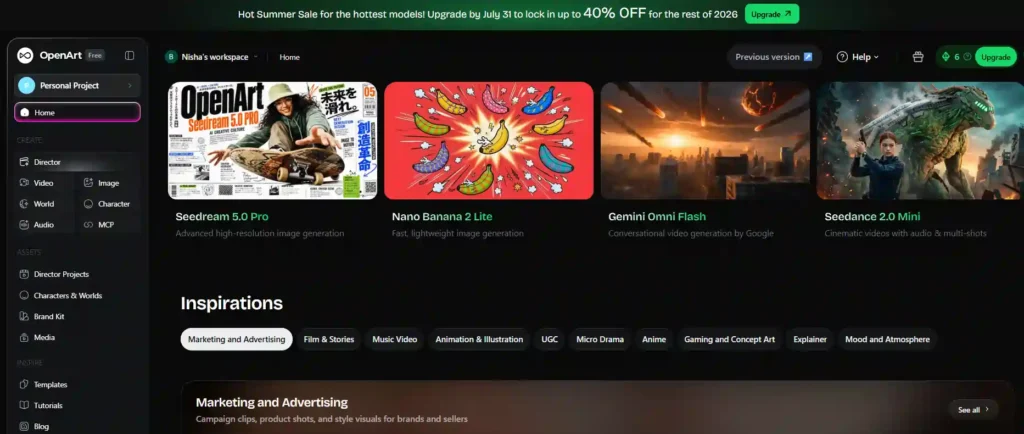
Video is where credits disappear fastest, so understanding this section properly actually saves money.
How to Use Text to Video on OpenArt
Type a prompt describing the scene, action, and mood. OpenArt generates a short clip based on your selected video model. Newer models like Seedance 2.0 offer faster rendering and lower per-clip cost compared to earlier versions.
How to Use Frame to Video on OpenArt
Instead of starting from text, you upload an image and OpenArt animates it into motion. This works well when you already have a strong still image and want it to move naturally.
How to Edit Videos Using OpenArt’s Edit Video Tool
You can modify or retake existing video clips without regenerating from scratch, which saves a meaningful number of credits over full re-renders.
How to Use Motion Sync and Lip-Sync on OpenArt
Motion Sync transfers motion from a reference video onto your generated content. Lip-Sync matches mouth movement to an audio track, useful for talking-head style content, explainers, or character dialogue.
How to Use OpenArt’s Editing Suite
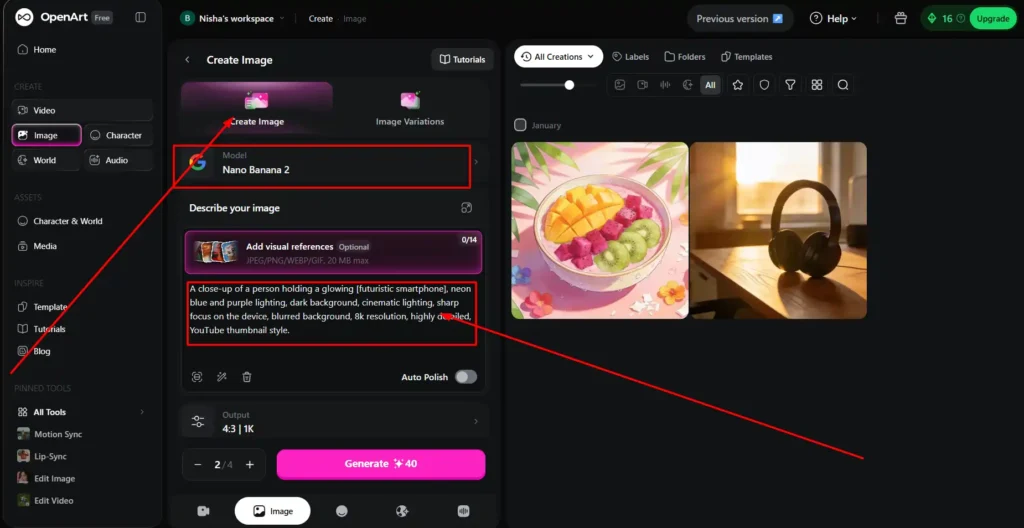
Editing tools are often overlooked, but they’re where OpenArt genuinely competes with dedicated design software.
How to Use Edit Image and Inpainting on OpenArt
Inpainting lets you highlight a specific area of an image and tell the AI to replace or modify just that section. Instead of regenerating a whole image because one detail is off, you fix only that part.
How to Replace Background and Relight Video on OpenArt
Replace Background swaps whatever is behind your subject without touching the subject itself. Relight Video adjusts lighting in a clip to match a reference look, which matters a lot for brand consistency across multiple videos.
How to Use Image Upscale on OpenArt
Upscale increases resolution and sharpness on images that need to go into print, ads, or larger displays. It’s a simple tool but one of the most-used features once people discover it.
How to Use VFX Tools on OpenArt
VFX masking lets you protect certain regions of an image while regenerating everything else around it. Useful for keeping a product or face intact while changing the environment.
How to Create Consistent Characters on OpenArt
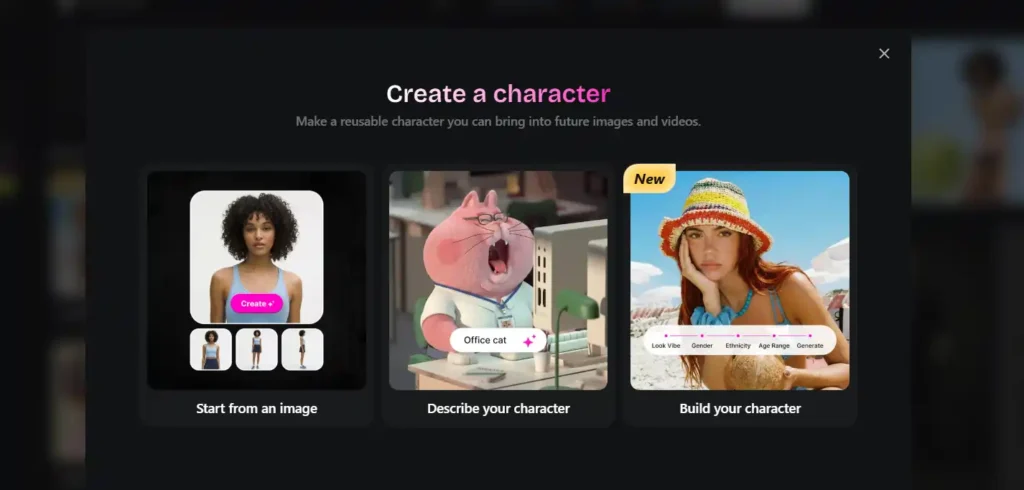
Character consistency is genuinely one of OpenArt’s strongest features, and it’s the one people search for most.
How to Build a Custom Character Model
You train the model using reference images of a character, and OpenArt learns their recognizable traits. Once trained, you can generate that same character in new scenes, outfits, or poses without them looking like “a distant cousin” of the original, which is a real problem with basic AI generators.
How to Use One-Click Story Creation on OpenArt
This tool takes a character and a story idea and generates a sequence of connected scenes automatically. It’s a fast way to prototype a comic, storyboard, or short narrative before refining manually.
How to Use OpenArt’s Director Mode
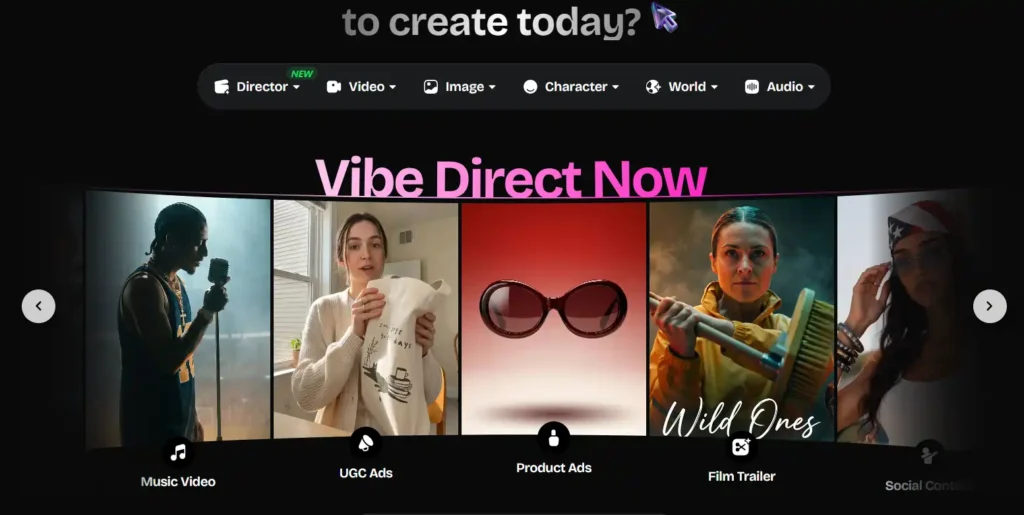
Director mode is built for planning before generating. It combines storyboard sheets with cinematic video output, so you sketch out the sequence first instead of generating clips one at a time and hoping they connect.
How Director Mode Helps With Storyboarding
For anyone producing short films, ads, or episodic content, Director mode reduces wasted generations because you’re planning shots before spending credits on full renders.
How to Use OpenArt for Music and Voice-Overs
How to Use Create Music on OpenArt
Type a description of the mood, genre, or purpose, and OpenArt generates original music. Useful for background tracks on video content without licensing concerns.
How to Generate Voice-Overs on OpenArt
The voice-over tool turns written text into natural-sounding narration, which pairs well with Lip-Sync for character-driven video content.
How to Use OpenArt MCP for Advanced Workflows
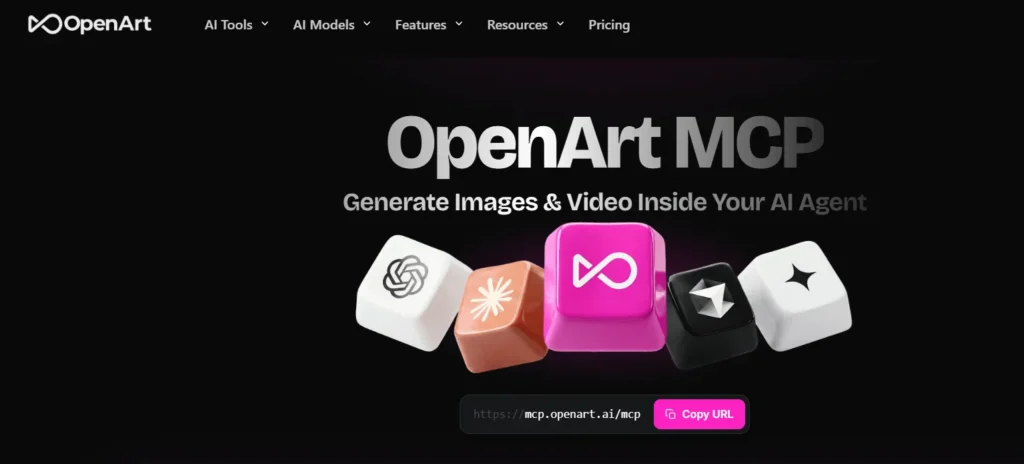
MCP access lets developers connect OpenArt directly into other tools and workflows through an API-style integration. It’s not something casual users need, but for teams building automated content pipelines, it removes a lot of manual back-and-forth.
How Do OpenArt Credits Work?
Credits are the backbone of every plan. Each plan gives you a monthly pool, and every generation, edit, or upscale deducts from it.
How Many Credits Do Images and Videos Cost
Standard image generation typically costs fewer credits than video. High-resolution upscaling, complex edits, and character training tend to cost more. As a rough guide, 4,000 credits on the Essential plan covers approximately 4,000 standard images or around 50 videos, since video consumes credits much faster.
How to Get More Credits (Extra Credit Add-Ons)
If you run out mid-month, OpenArt offers Extra Credit add-ons, roughly $15 for 5,000 credits, available once you’re subscribed to a paid plan like Advanced.
How Much Does OpenArt Cost? (Pricing Plans Explained)
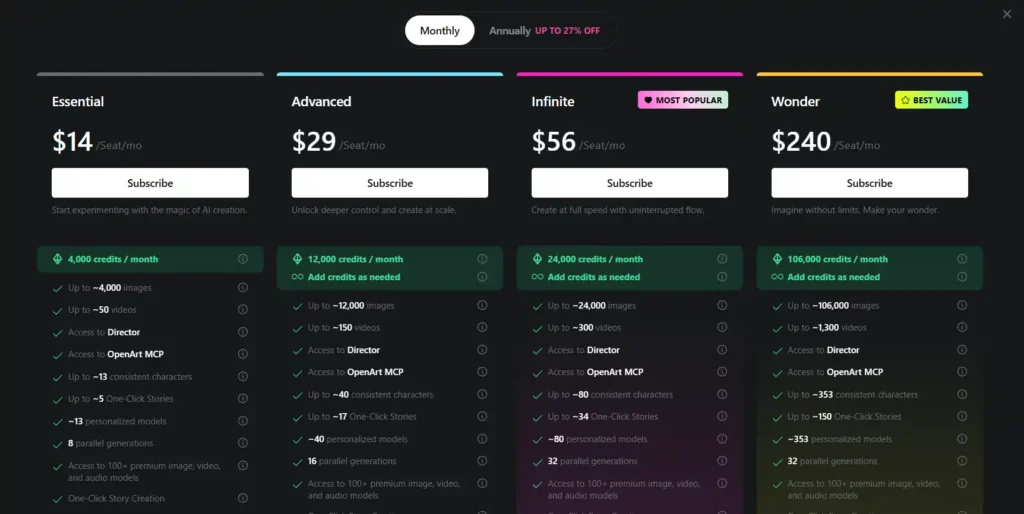
| Plan | Monthly Price | Credits/Month | Best For |
| Essential | $14/seat | 4,000 | Beginners experimenting |
| Advanced | $29/seat | 12,000 | Regular creators, commercial rights included |
| Infinite | $56/seat | 24,000 | High-volume creators |
| Wonder | $240/seat | 106,000 | Agencies, unlimited-style usage |
OpenArt Essential Plan Breakdown
Essential gives you 4,000 credits, access to Director, around 13 consistent characters, and 8 parallel generations. It’s a reasonable entry point if you’re testing the platform seriously rather than casually.
OpenArt Advanced Plan Breakdown
Advanced is the most popular tier, and it’s the first one that includes commercial use rights. That matters a lot if you’re creating content for clients or your own business, not just personal projects.
OpenArt Infinite Plan Breakdown
Infinite doubles the credit pool again and adds priority support, useful once you’re generating daily rather than occasionally.
OpenArt Wonder Plan Breakdown
Wonder is built for teams producing at scale, with 106,000 credits and unlimited use of select models like Nano Banana 2 Lite and Seedream 5.0 Pro during promotional periods.
How to Use OpenArt for Free (Free Plan Limits)
The free plan gives limited daily credits, enough to explore the interface and test a few generations, but not enough for consistent content production. It’s genuinely useful for deciding if the platform fits your workflow before paying.
How to Use OpenArt Templates and Inspiration Galleries
The Inspire section organizes ideas by category, Marketing, Film & Stories, Music Video, Anime, Gaming, UGC, and more. Browsing this before starting a project often saves time compared to prompting from a blank page.
Templates under each category come pre-structured, so you’re adjusting an existing setup rather than building one from scratch.
How to Use OpenArt for Teams and Enterprise
Team plans add shared credits, collaborative workspaces, and centralized billing. For agencies managing multiple clients or brands, this avoids juggling separate individual accounts.
You can also explore our guide on AI video generation tools if your team is scaling video production specifically.
How to Cancel or Downgrade Your OpenArt Subscription
Cancellation happens through account settings, under billing or subscription management. Select cancel, confirm, and access typically continues until the end of your current billing cycle. Downgrading works the same way, though your credit allowance adjusts at the next renewal.
OpenArt vs Midjourney vs Leonardo AI: Which Should You Use?

| Factor | OpenArt | Midjourney | Leonardo AI |
| Starting price | $14/mo (as low as $7 annual) | $10/mo | $12/mo |
| Commercial rights | From Advanced plan | Included from $10/mo | Included on all paid plans |
| Model variety | 100+ models | Single proprietary model | Multiple models |
| Video generation | Yes, built-in | Limited | Limited |
| Character consistency | Strong, built-in training | Manual seed-based | Moderate |
If tool consolidation matters more than raw image quality, OpenArt tends to win. If you want the highest artistic ceiling for still images specifically, Midjourney still has a strong case.
FAQs About How to Use OpenArt
Can I cancel my OpenArt subscription anytime?
Yes. Cancellation is available anytime through account billing settings, and access continues until the kcurrent cycle ends.
Do OpenArt credits roll over monthly?
Generally, subscription credits reset each month rather than rolling over, though this can vary slightly by plan.
What’s the difference between monthly and annual OpenArt plans?
Annual billing offers a significant discount, in some cases roughly half the monthly rate, in exchange for a yearly commitment.
Does OpenArt offer commercial usage rights?
Yes, starting from the Advanced plan. The Essential and free tiers don’t include commercial rights.
How does unlimited generation work on OpenArt?
Certain promotional periods offer unlimited use of specific models, like Nano Banana 2 Lite, without deducting standard credits, though this varies by plan and promotion.
Final Thoughts from Nisha
OpenArt looks overwhelming on day one, but once you understand credits, models, and the editing tools, it becomes second nature fast.
I’ve used it daily for a year now, and honestly, the character consistency alone saved me hours I used to lose fixing mismatched AI outputs.
Start small. Try the free plan first, generate a few images, test one video, then decide if a paid tier fits your workflow.
Got questions about a specific tool inside OpenArt? Drop them in the comments, I read every one.