Uploading a script, blog post, or PowerPoint into Pictory AI and getting back a finished video sounds simple until you actually open the dashboard. Between scene selection, AI voiceovers, caption styling, and stock footage matching, it’s easy to feel unsure where to start or whether you’re using the tool correctly.
Pictory AI turns written content into short, ready-to-share videos without traditional timeline editing. This guide walks through how to use Pictory AI step by step, from creating your first project to adjusting captions, voiceovers, and branding before exporting.
Whether you’re repurposing a blog post for YouTube or building social clips from a script, understanding how Pictory AI works from the start makes the process faster and the results more consistent.
What Is Pictory AI and How Does It Work?
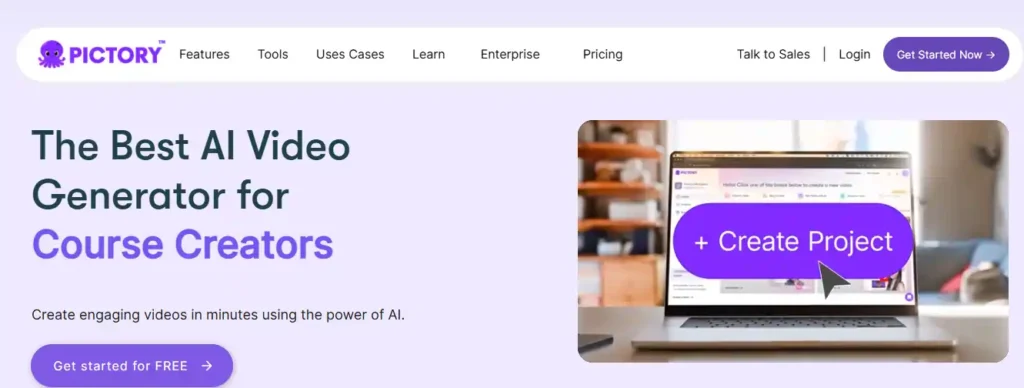
Pictory AI is a web-based video generation platform that converts text, scripts, blog posts, presentations, images, and existing video into edited, publish-ready videos. Instead of manually assembling clips on a timeline, you provide content in the form Pictory supports, and the AI builds a scene-by-scene storyboard automatically.
The platform analyzes your input, breaks it into scenes, matches each one with relevant stock footage or AI-generated visuals, adds captions, and can layer in an AI voiceover. From there, you move into an editor where you can swap visuals, adjust timing, and apply your own branding before exporting the finished file.
The core idea behind Pictory AI is that video creation should start with content you already have — a script, an article, a recording, or even just an idea — rather than starting from a blank timeline.
Save 20% on Your Pictory AI Plan
Use code CABF20 at checkout and get 20% off any Pictory AI subscription plan today.
Who Should Use Pictory AI?
Pictory AI is built around common, repeatable video needs rather than one narrow use case. It tends to fit well for:
- Content creators and YouTubers repurposing long-form videos into shorts or highlight reels.
- Marketers turning blog posts, product pages, or ad copy into social video.
- Educators and course creators converting lesson scripts or slides into narrated lessons.
- Small businesses producing product explainers or promotional videos without a production team.
- Corporate teams building training, onboarding, or internal communication videos.
If your work already involves writing scripts, blog content, or presentations, Pictory AI is designed to turn that existing material into video with minimal extra effort.
How to Set Up Your Pictory AI Account Before You Start
Before creating your first video, a short setup process makes the rest of the workflow smoother:
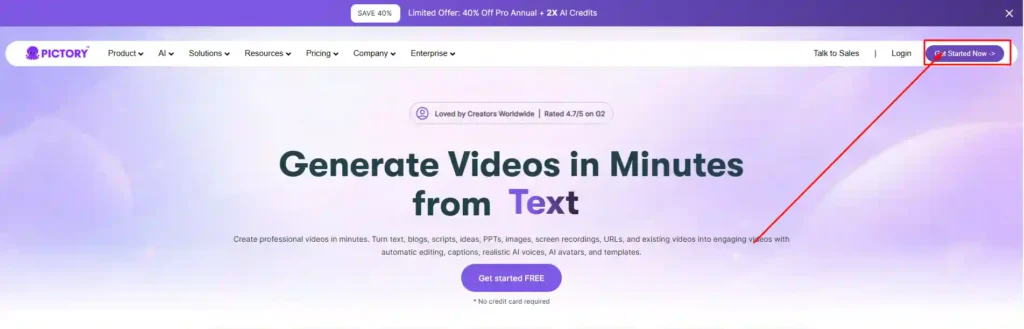
- Go to Pictory’s website and create an account (a free trial is available without requiring payment details).
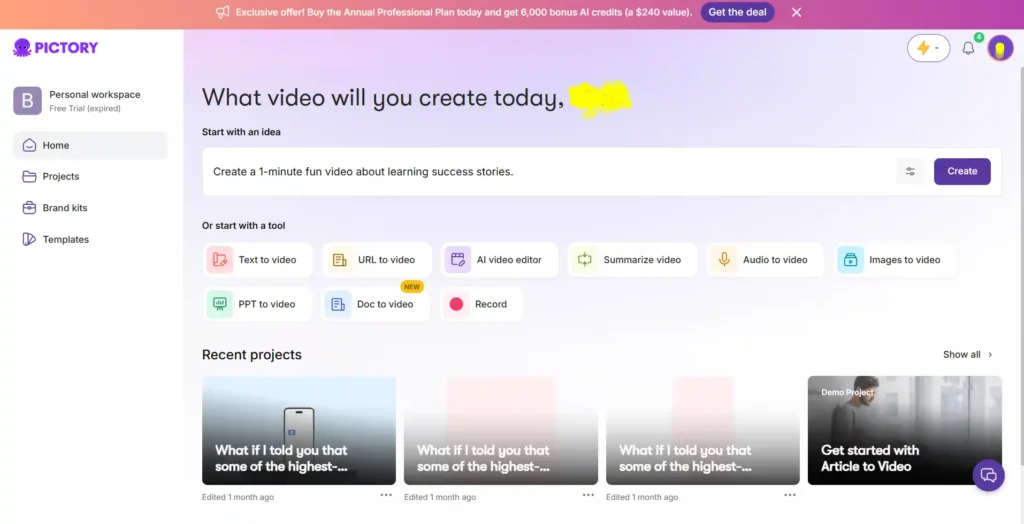
- Log in and open your dashboard, which lists the available generation methods — script, URL, idea, images, and more.
- Click your profile icon and check your account settings, including language and workspace preferences.
- If you plan to publish branded content, set up your Brand Kit before creating videos, so every project you build afterward is already styled consistently.
This setup only takes a few minutes, but it saves time later since you won’t need to re-apply branding or preferences on every project.
How to Use Pictory AI’s Brand Kit for Consistent Videos
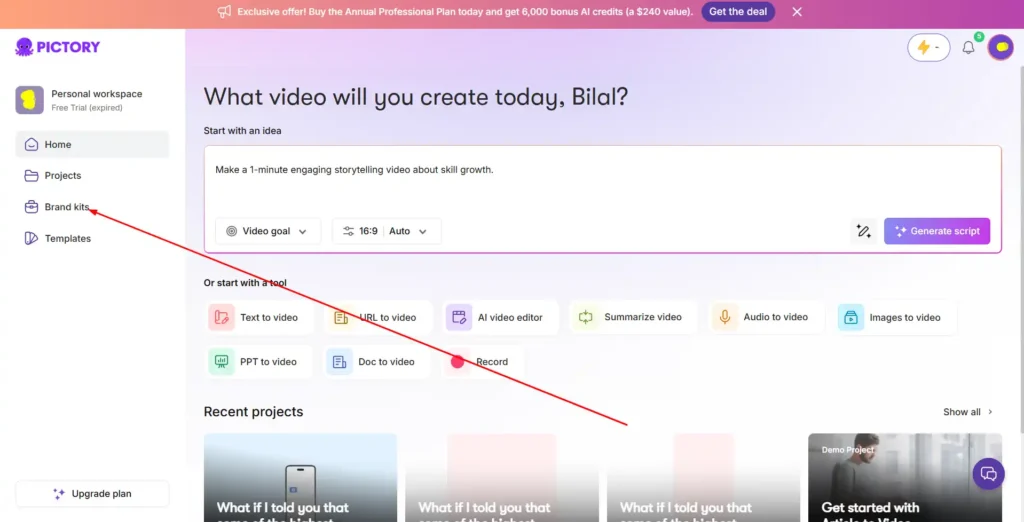
The Brand Kit is where you store your logo, brand colors, and fonts so every video you generate looks consistent, without manually re-adding these details each time.
To set it up:
- From your profile menu, open Brand Kit.
- Upload your logo and set your primary and secondary brand colors.
- Choose default fonts for titles and captions.
- Save the kit — it will now be available to apply inside the video editor for any project.
Once configured, you can apply your Brand Kit to a project from the Branding tab while editing, which updates colors, fonts, and logo placement across the video in one step. This is particularly useful if you’re producing multiple videos for the same channel or client and want a consistent look without repeating manual formatting.
How to Use Pictory AI: Script to Video (Step-by-Step)
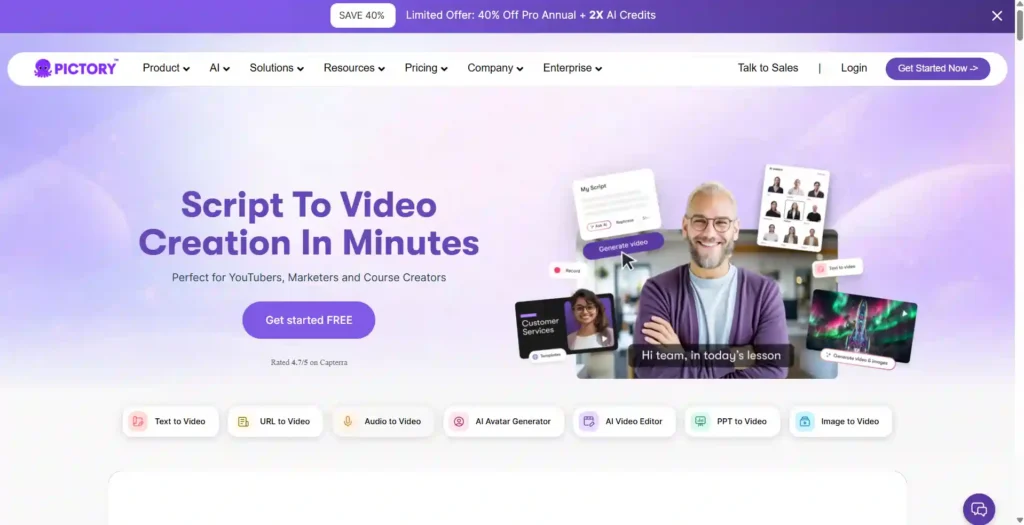
Script to Video is one of Pictory AI’s core features, turning written scripts into fully structured videos.
- From the Pictory dashboard, select Text to Video, then Script to Video.
- Paste your script into the input box, import a document, or type directly into the editor.
- If you don’t already have a script, use Ask AI to Write Script to generate one from a topic prompt.
- Click Next to move into scene customization.
- Set your preferences, including aspect ratio and how scenes are segmented (by sentence or line break).
- Pictory automatically builds a storyboard, matching visuals to each scene and generating captions.
- Review the storyboard in the AI Video Editor, replacing visuals, adjusting text, or reordering scenes as needed.
For cleaner pacing, keep sentences short and specific. Adding visual cues in brackets (for example, noting a product shot or demo moment) can help the AI select more relevant visuals for that scene.
How to Use Pictory AI: Blog Post or URL to Video
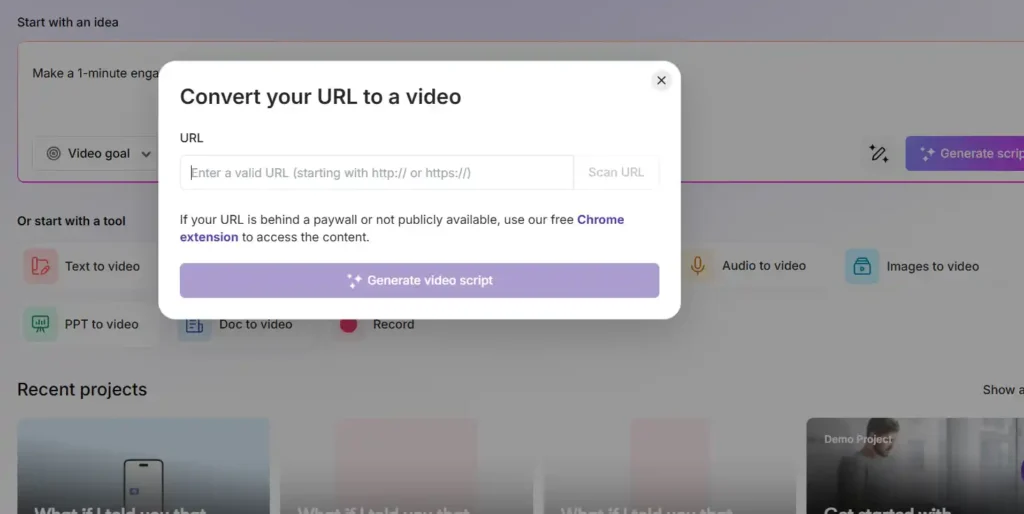
If your content already exists as a published article, Pictory can convert it directly using a URL rather than requiring you to copy and paste the text manually.
- From the dashboard, select the URL to Video option.
- Paste the link to the blog post or article you want to convert.
- Pictory extracts the article’s text and automatically summarizes it into a script-ready format.
- Review and edit the extracted script if needed, since automated extraction can occasionally include unnecessary text (like navigation links or ads) that should be removed.
- Continue into the storyboard and editor exactly as you would with Script to Video.
This method is useful for marketers and bloggers who want to repurpose existing content into video without rewriting anything from scratch.
How to Use Pictory AI: Idea to Video (No Script Needed)
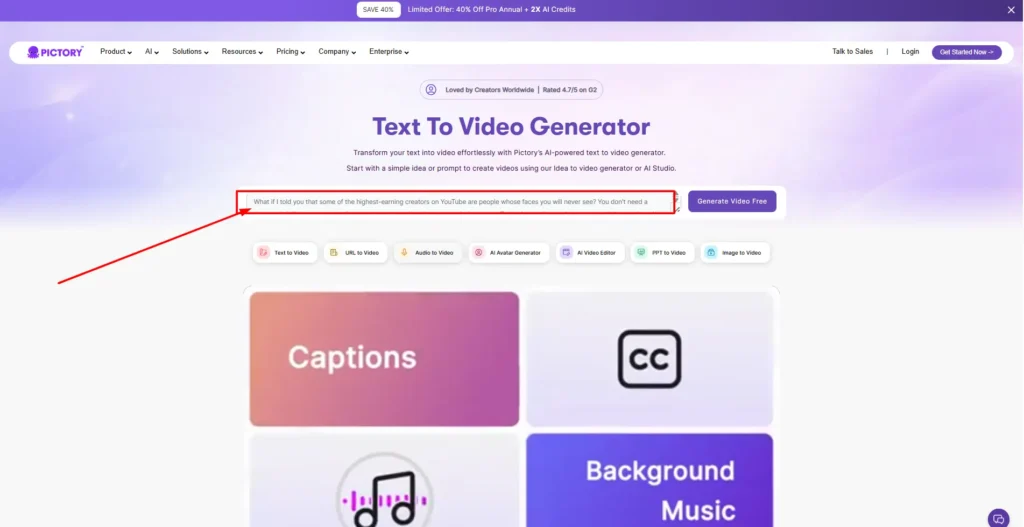
If you don’t have a script or article yet, Idea to Video lets you start from just a topic or short prompt.
- From the dashboard, select Text to Video, then Idea to Video.
- Enter a short description of your topic or the message you want the video to cover.
- Pictory generates a full script and storyboard based on your prompt, tailoring tone and structure to your input.
- Review the generated script and use Ask AI tools to adjust tone, tighten wording, or restructure sections.
- Once you’re satisfied, continue into scene customization, visuals, and export exactly as with other methods.
This option works well for creators who have a clear idea in mind but haven’t written anything down yet, since it removes the scripting step entirely.
How to Use Pictory AI: Images to Video
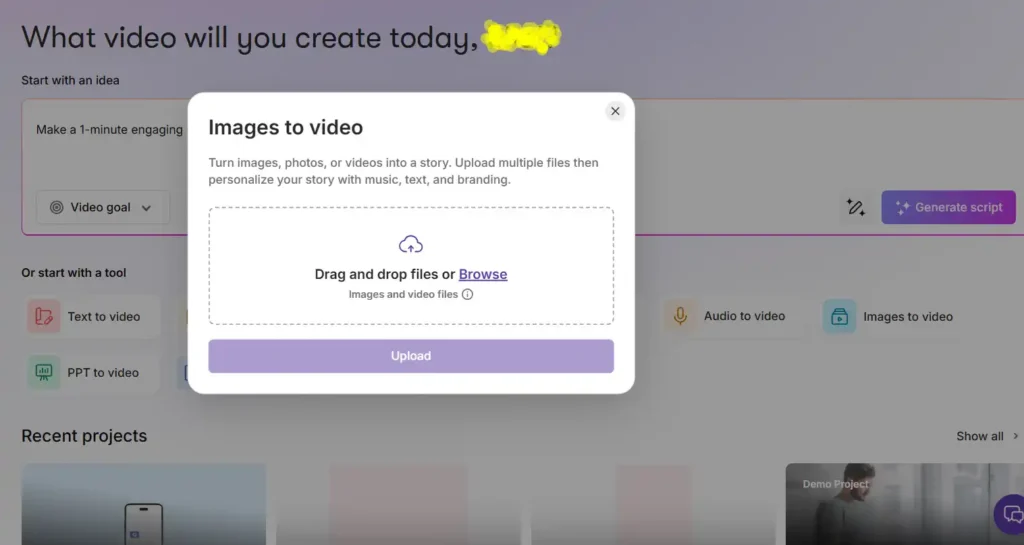
For projects built entirely from photos or a mix of images and short clips, Images to Video turns static visuals into a moving video.
- From the Pictory Home Page, select Images to Video.
- Upload your images by dragging them in or browsing your files (you can also mix in short video clips).
- Arrange the order of your uploaded files by dragging thumbnails, and remove any you don’t want to include.
- Use the estimated duration indicator to track your total video length as you build the sequence.
- Click Generate Video to create the storyboard.
- Once the storyboard finishes processing, refine it in the AI Video Editor — adjusting scene duration, transitions, and branding.
This method is a practical option for photographers, real estate listings, event recaps, or any content built primarily from a photo collection rather than written text.
How to Use Pictory AI’s Screen Recorder for Tutorials
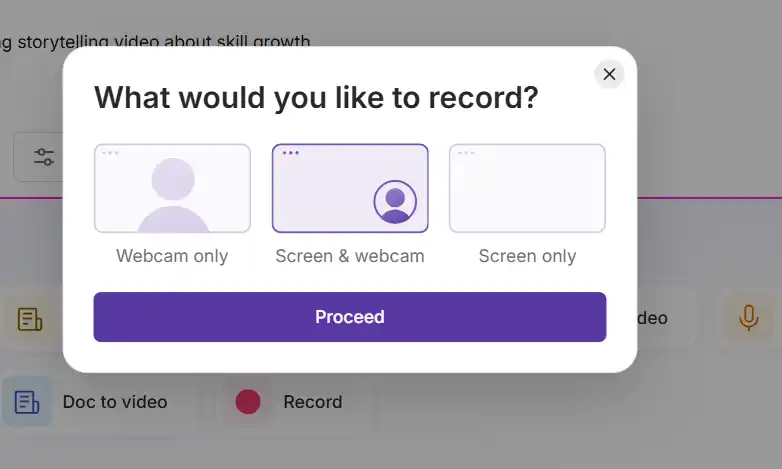
For software walkthroughs or tutorial content, Pictory includes a built-in screen recorder so you don’t need separate recording software.
- From your dashboard, click Screen Recorder in the top navigation.
- Grant browser permissions for screen and microphone access.
- Choose to record your full screen, a specific application window, or a browser tab.
- Toggle your microphone on if you want to narrate live while recording.
- Click Stop Recording when finished.
Once stopped, Pictory automatically uploads the recording and opens it in the AI Video Editor, where it can be trimmed, captioned, and exported like any other project. This is a fast way to turn a walkthrough into a polished demo without switching between multiple tools.
How to Edit Videos in Pictory AI Using the Transcript
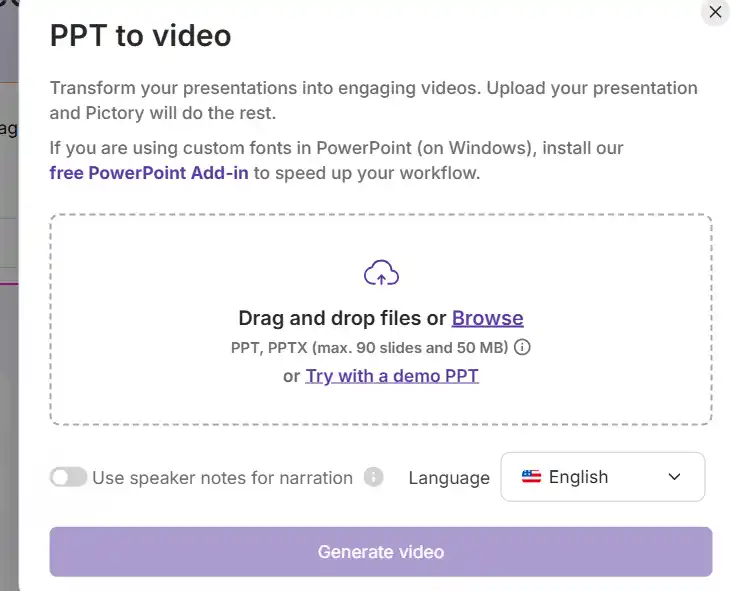
Pictory’s AI Video Editor lets you edit existing footage by editing the written transcript instead of manually cutting a timeline.
- From the dashboard, click Edit Videos Using Text.
- Upload your video file, or paste a link if importing from a supported platform.
- Pictory automatically transcribes the audio into an editable text panel.
- Read through the transcript and delete any words, sentences, or sections you want removed — the corresponding video clip cuts automatically.
- Preview your edits to confirm the cuts flow naturally.
- Export the finished video once you’re satisfied.
This transcript-based approach is particularly useful for removing filler words, mistakes, or long pauses without scrubbing through footage manually.
How to Customize Captions in Pictory AI
Captions are generated automatically as part of the storyboard process, but they can be adjusted for style and readability:
- Open the Captions or subtitle panel inside the AI Video Editor.
- Adjust font, size, color, and position to match your brand or platform preferences.
- Edit the caption text directly if any words were transcribed incorrectly.
- Choose whether captions appear as full sentences or highlighted keyword-style captions, depending on the platform you’re publishing to.
Since many viewers watch social videos without sound, reviewing captions for accuracy and readability is worth doing before export, even though the initial version is generated automatically.
How to Add AI Voiceovers in Pictory AI
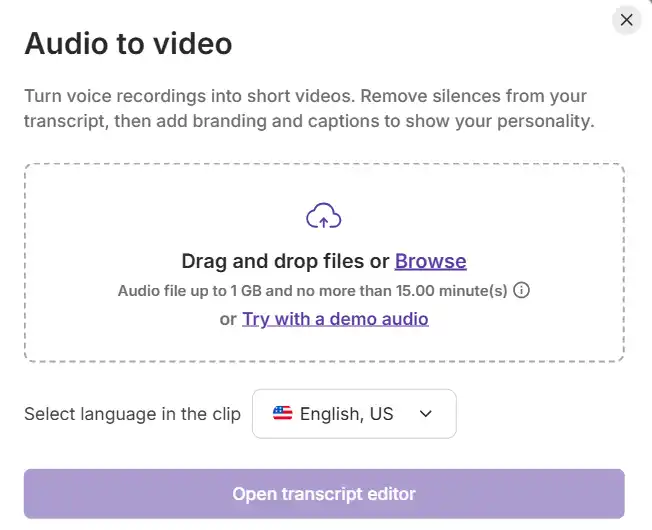
Pictory can generate a narrated voiceover for your video automatically, or you can add your own recorded audio.
- Open the Audio tab inside the AI Video Editor.
- Choose an AI voice option, selecting tone, gender, and language where available.
- Preview the voiceover against your script to check pacing and pronunciation.
- Alternatively, upload your own recorded voice track, which Pictory can sync to your scenes automatically.
- Adjust volume levels between voiceover, background music, and original audio if applicable.
If a generated voice doesn’t sound right for a particular word or phrase, adjusting the script’s punctuation or spelling out the pronunciation manually can sometimes improve how it’s read.
How to Choose the Right Aspect Ratio in Pictory AI
Pictory supports multiple aspect ratios so the same content can be adapted to different platforms:
| Aspect Ratio | Best For |
|---|---|
| 16:9 (landscape) | YouTube, presentations, website embeds |
| 9:16 (portrait) | TikTok, Instagram Reels, YouTube Shorts |
| 1:1 (square) | Instagram feed posts, Facebook |
You can set your aspect ratio before generating your storyboard, or adjust it afterward, though visuals and text placement may need minor adjustments if you change formats after the fact. If you’re repurposing one video across multiple platforms, creating separate exports for each ratio typically gives cleaner results than relying on a single format everywhere.
How to Preview and Export Your Pictory AI Video
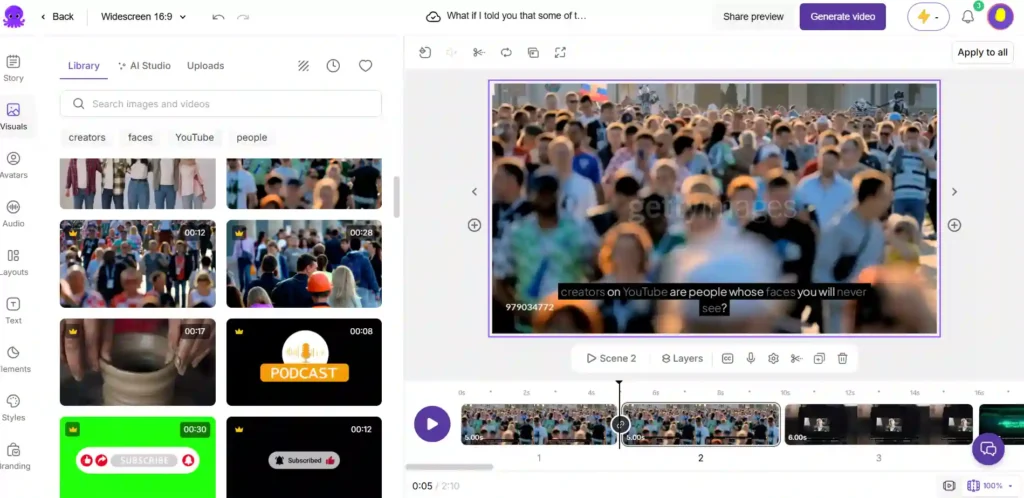
Before downloading, it’s worth reviewing the full video rather than just individual scenes:
- Use Preview Video to watch the complete sequence, checking that visuals, captions, and voiceover stay in sync.
- Make any final adjustments to timing, transitions, or branding.
- Click Download Video to export, or use available options to share directly to connected platforms.
- Your project is automatically saved under My Projects, so you can return to make edits later without starting over.
Reviewing the full preview — not just spot-checking a few scenes — helps catch pacing issues or mismatched visuals before the video is finalized.
Tips to Get the Best Results When Using Pictory AI
- Keep scripts written in short, clear sentences; this improves both scene segmentation and voiceover pacing.
- Set up your Brand Kit early so every project stays visually consistent without repeated manual work.
- Preview the entire video before exporting rather than checking scenes individually.
- Use the transcript editor for cleanup instead of manually scrubbing a timeline.
- Match your aspect ratio to your primary publishing platform before generating the storyboard, since this affects visual composition.
Common Pictory AI Mistakes to Avoid
- Skipping the script review step. Automated scripts and transcripts can include awkward phrasing or extraction errors that are easy to miss if you go straight to export.
- Ignoring caption accuracy. Since many viewers watch without sound, mismatched or incorrect captions can hurt comprehension and engagement.
- Not previewing the full video. Reviewing only a few scenes can let pacing or visual mismatches slip through.
- Choosing the wrong aspect ratio upfront. Changing formats after the storyboard is built often requires additional visual adjustments.
- Overlooking plan limits. Video minutes, resolution, and export options vary by plan, so it’s worth checking your plan’s limits before starting a longer project.
Pictory AI Pricing: Which Plan is Right for You?
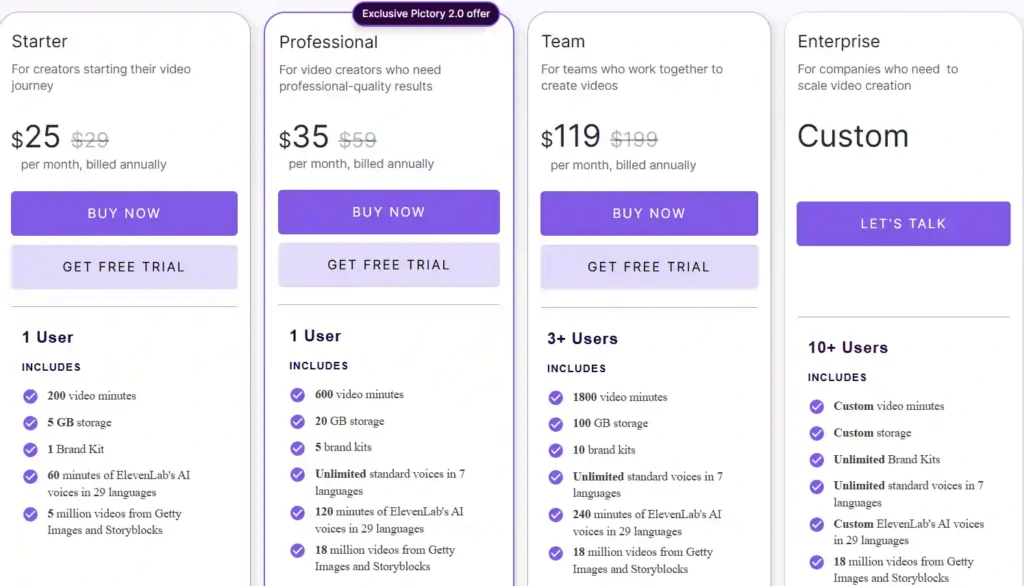
Pictory AI offers a flexible pricing structure designed to scale with your content needs, whether you are a solo YouTuber testing the waters or an agency producing daily video campaigns.
Before committing, Pictory offers a 14-day free trial that lets you test the platform’s core features without entering a credit card. If you decide to upgrade, here is how the paid tiers break down (prices reflect annual billing, which saves you up to 40%):
1. Starter Plan ($25/month)
- Best for: New content creators, solo bloggers, and beginners starting their video marketing journey.
- Key Features: 1 user seat, 2,400 video minutes per year (up to 5-minute long videos), 1 Brand Kit, and 1,200 AI credits. You also get 720 minutes of ElevenLabs hyper-realistic AI voices and access to 5 million stock assets.
2. Professional Plan ($35/month)
- Best for: Serious affiliate marketers, YouTubers, and video creators who need professional-quality results and longer video limits.
- Key Features: 1 user seat, 7,200 video minutes per year (up to 30-minute videos), and 5 Brand Kits. This plan is the sweet spot, unlocking premium features like Voice Cloning, Custom Avatars, video summarization for long-form content, and an expanded library of 18 million stock assets from Getty Images and Storyblocks.
3. Team Plan ($119/month)
- Best for: Marketing agencies, collaborative teams, and high-volume content operations.
- Key Features: 3+ user seats, 21,600 video minutes per year, 10 Brand Kits, and a dedicated team workspace to share assets and collaborate on video projects.
4. Enterprise Plan (Custom Pricing)
- Best for: Large organizations needing to automate and scale video creation.
- Key Features: Custom video minutes, unlimited Brand Kits, Single Sign-On (SSO), API access, and interactive video hosting (Pictory Central) with clickable CTAs and quizzes.
The Verdict: If you are repurposing blog posts and generating standard social media clips, the Starter Plan has everything you need. However, if you want your AI videos to stand out with customized Voice Cloning and AI Avatars, the upgrade to the Professional Plan is highly recommended for the best ROI.
Pictory AI Alternatives Worth Considering
Pictory AI isn’t the only text-to-video option available, and depending on your workflow, another tool may fit better:
- CapCut – a widely used, beginner-friendly editor with strong short-form video features.
- Descript – built around a transcript-first editing approach, similar in concept to Pictory’s text-based video editing.
- Filmora – a more traditional desktop video editor with a broader range of manual effects and transitions.
- VEED – a browser-based editor known for collaboration features and quick, simple edits.
- InVideo – another AI-assisted text-to-video platform with a template-driven workflow.
If your priority is turning existing written content into video with minimal manual editing, Pictory’s script- and URL-based workflows are a close match. If you need more manual control over transitions and effects, a traditional editor like Filmora may suit you better.
FAQs About How to Use Pictory AI
Is Pictory AI free to use?
Pictory offers a free trial that doesn’t require credit card details, with limits on video length and monthly minutes compared to paid plans
How do I create my first video in Pictory AI?
Choose an input method from your dashboard — Script to Video, URL to Video, Idea to Video, or Images to Video — then follow the storyboard and editor steps to customize and export.
Can Pictory AI convert a blog post into a video automatically?
Yes. Pasting a blog post’s URL into the URL to Video tool extracts the article’s text and turns it into a script-ready storyboard, which you can review and edit before generating the final video.
Do I need editing experience to use Pictory AI?
No. The workflow is built around reviewing and adjusting AI-generated scenes, captions, and voiceovers rather than manual timeline editing, which makes it accessible for beginners.
Can I add my own branding to Pictory AI videos?
Yes. Setting up a Brand Kit with your logo, colors, and fonts lets you apply consistent branding to any project from the Branding tab in the editor.
What aspect ratios does Pictory AI support?
Pictory supports 16:9 (landscape), 9:16 (portrait), and 1:1 (square) formats, covering platforms like YouTube, TikTok, Instagram, and Facebook.
Can I edit an existing video using Pictory AI?
Yes. The Edit Videos Using Text feature transcribes your uploaded video and lets you cut footage by deleting text from the transcript, rather than manually trimming a timeline.
Nisha’s Take
Pictory AI takes the guesswork out of video creation. Instead of learning complex editing software, you simply start with what you already have — a script, a blog post, or even just an idea.
From setting up your Brand Kit to fine-tuning captions and voiceovers, each step builds toward a polished, publish-ready video.
Whether you’re a solo creator or part of a growing team, Pictory AI makes video production faster, simpler, and far more accessible than traditional editing ever was.